Overview
To translate Virtual Hearings web pages to other languages, you can use the translation capabilities available in the latest supported web browsers and mobile devices.
Continue for specific web browser and mobile device instructions.
Web browsers
How to translate a webpage using Chrome:
-
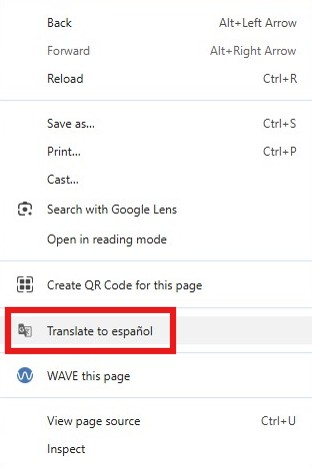
Open the webpage you want to translate. Right-click anywhere on the page, then select "Translate to [language]" from the menu to select your language:
-
The page will be automatically translated, and the "Translate this page" icon (
 ) will appear in the right side of the address bar:
-
To change the translation to another language:
-
Click the "Translate this page" icon (
), click the "Translate options" menu icon ( ) and select "Choose another language":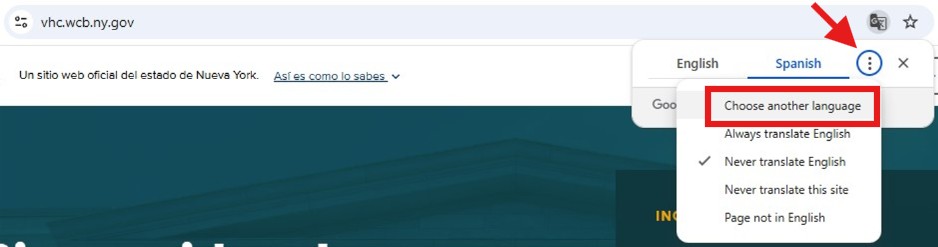
-
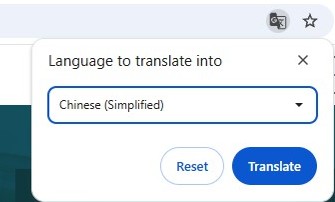
From the drop-down list of languages, select a language and click "Translate":
-
-
To switch back to your default language, click the "Translate this page" icon (
) and select your default language:
Additional resource
How to translate a webpage using Microsoft Edge:
-
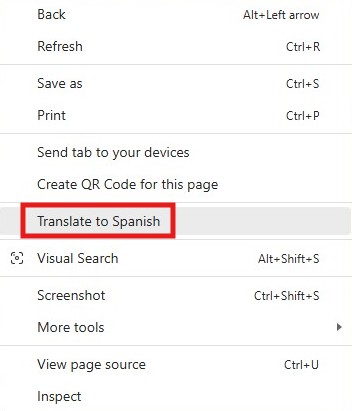
Open the webpage you want to translate. Right-click anywhere on the page and choose "Translate to [language]."
-
The page will be automatically translated, and the "Translated" icon (
 ) will appear in the right of the address bar:
-
To change the translation to another language, click the "Translated" icon (
), select a language from the drop-down menu and click "Translate":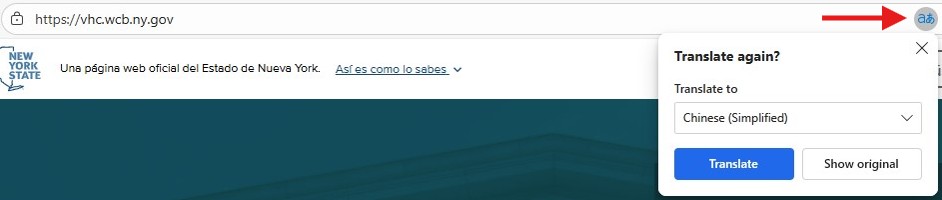
-
To switch back to your default language, click the "Translated" icon (
) and click "Show original":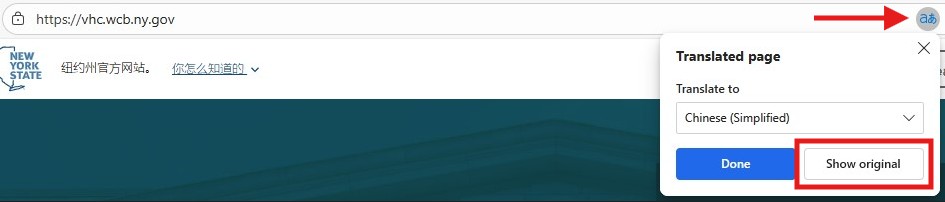
Additional resource
How to translate a webpage using Firefox:
-
Open the web page you want to translate. In the upper-right of the browser window, click the "Open application menu" icon (
 ), then select the "Translate page …" option: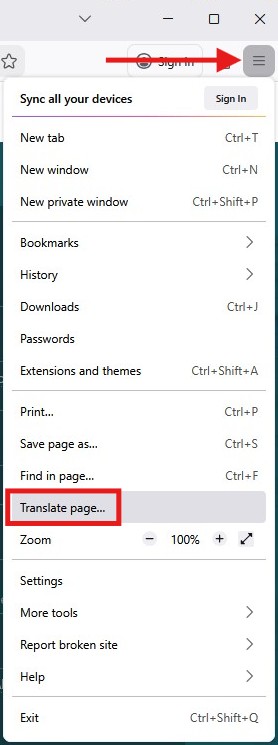
-
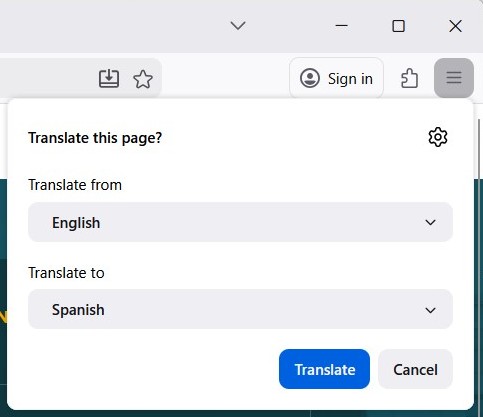
From the "Translate to" drop-down, select a language and then click "Translate":
-
The page will be translated, and the "Page translated from …" icon (
) will appear in the right of the address bar:
-
To change the translation to another language, click the "Page translate" icon (
), select a language from the drop-down menu and click "Translate":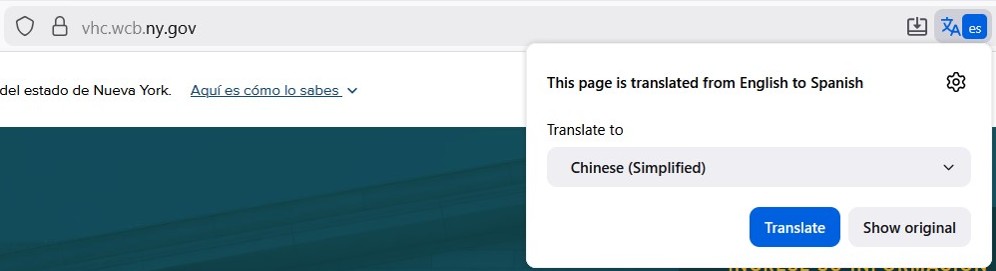
-
To switch back to your default language, click the "Page translate" icon (
) and click "Show original":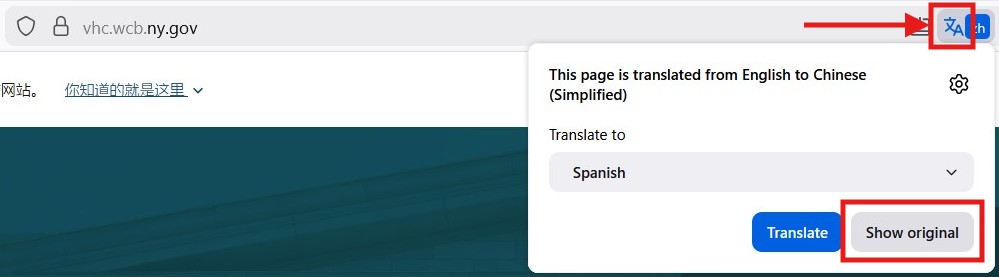
Additional resource
Warning: Mac/Safari translation capabilities may not display web pages correctly. Use another supported web browser for its built-in translation capabilities, such as Chrome, Edge, or Firefox.
Mobile devices
How to change the translation settings on an Android device:
-
Tap "Settings":

-
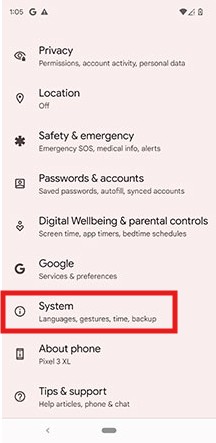
Tap "System":
-
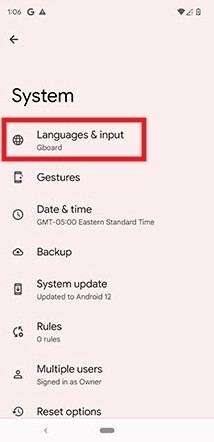
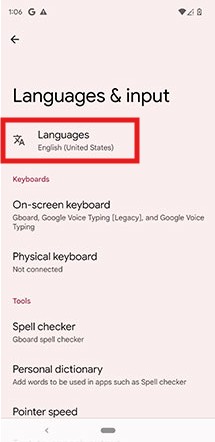
Tap "Languages & input":
-
Tap "Languages":
-
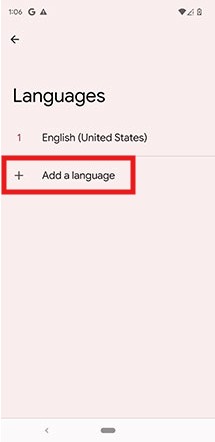
Tap "Add a language":
-
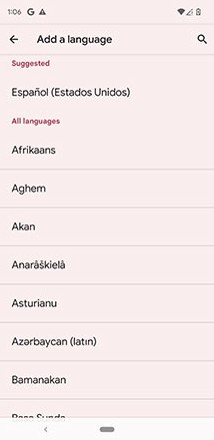
Select the language you want to use:
-
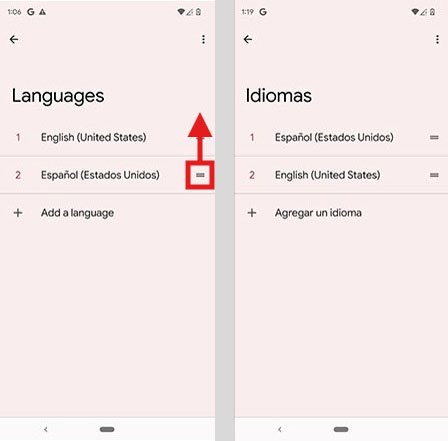
Drag the language you want to use by default to the top of the list:
-
Open Chrome:

-
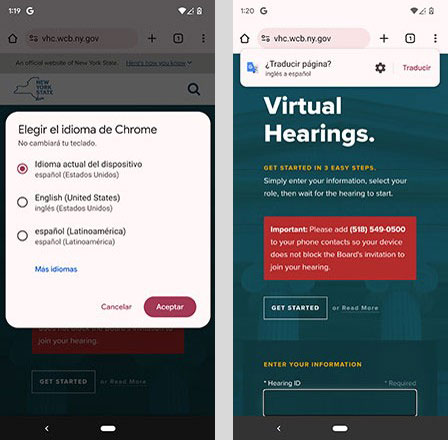
From the web page you want to translate, choose the language you want to use:
-
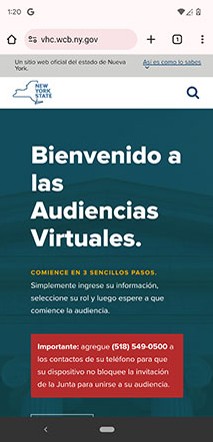
The page will be translated into the selected language:
-
To revert to the original language:
-
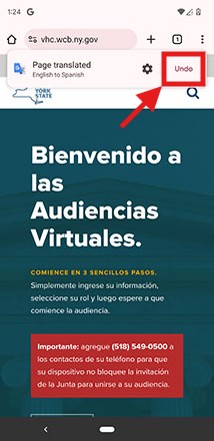
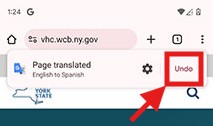
If the pop-up menu appears on the translated page, tap "Undo":
-
If there is no pop-up, or the pop-up menu closes on its own:
-
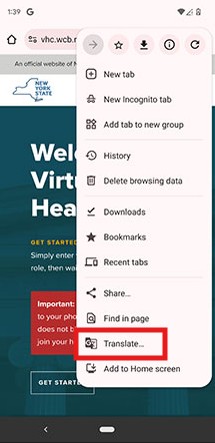
Tap the options menu (
 ) to the right of the address bar: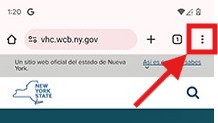
-
Tap "Translate …":
-
Select "Undo":
-
-
Additional resource
-
Tap "Settings":

-
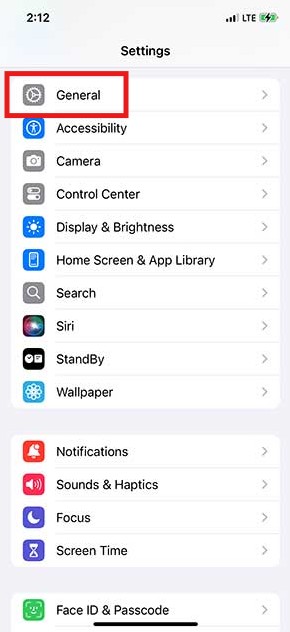
Tap "General":
-
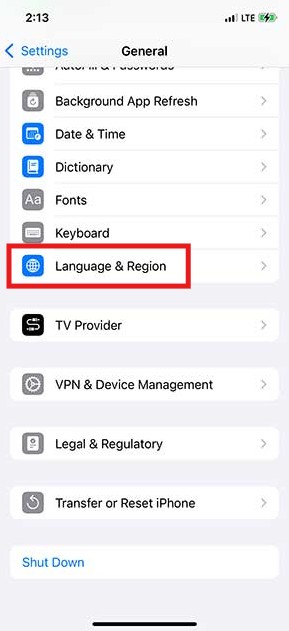
Tap "Language & Region":
-
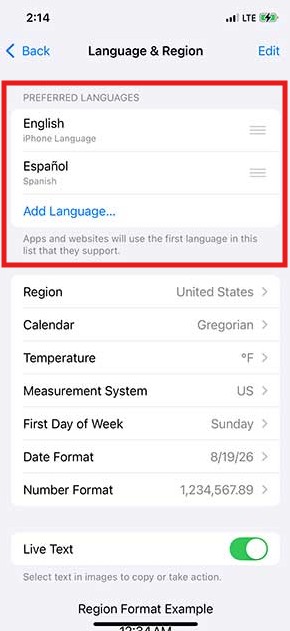
Tap "Add Language":
-
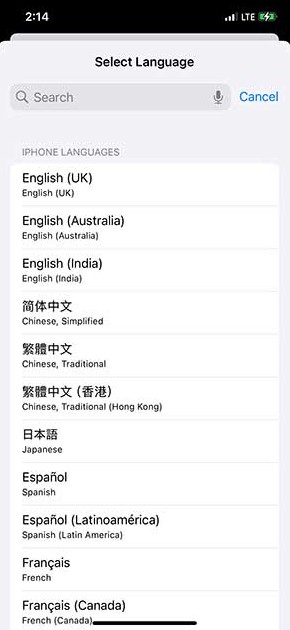
Select the language you want to add from the list:
-
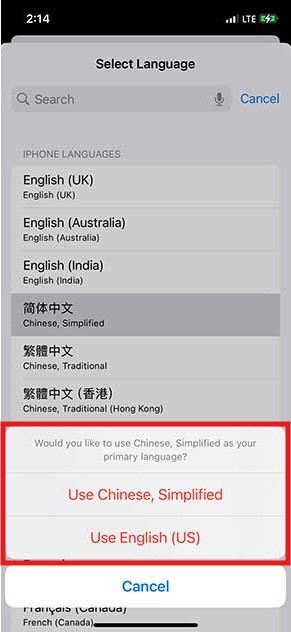
Select which language to use as your primary language:
-
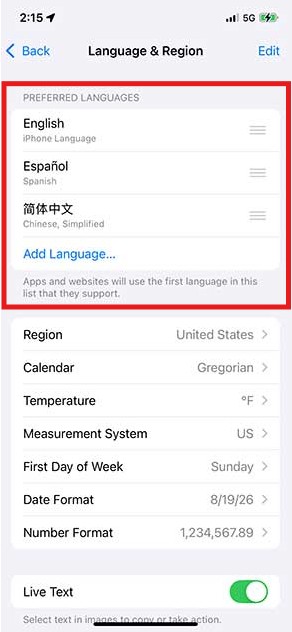
The language you chose will be added to the list of preferred languages:
-
Open Safari:

-
From the web page you want to translate, tap the "Page View" icon (
 ) in the address bar at the bottom (if the address bar is hidden, swipe down and it will re-appear):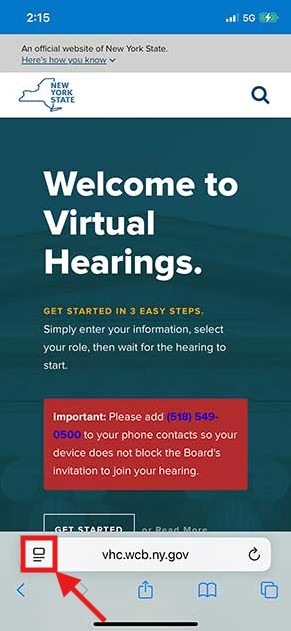
-
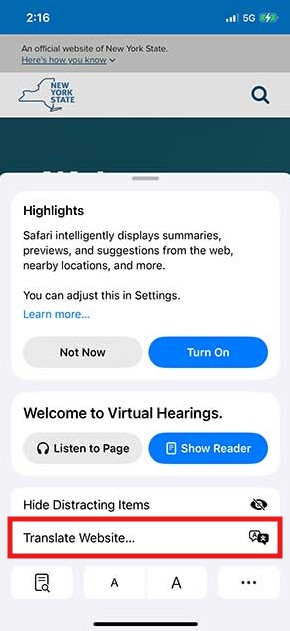
Tap "Translate Website …":
-
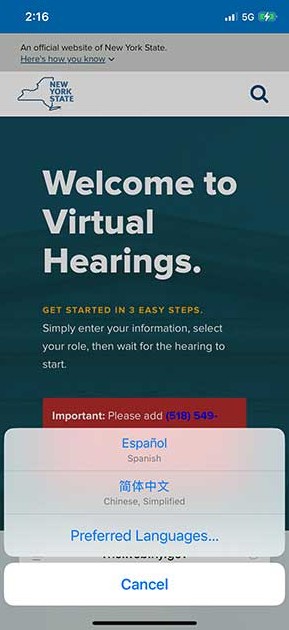
Select the language you want to translate the page to:
-
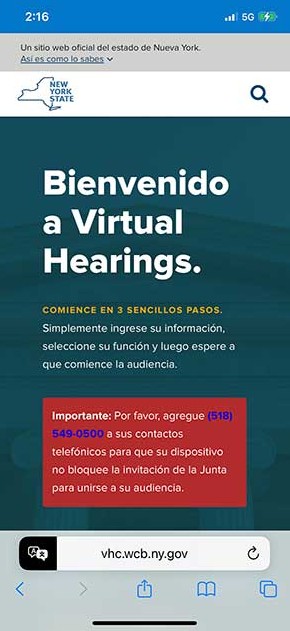
The page will be translated into the selected language:
-
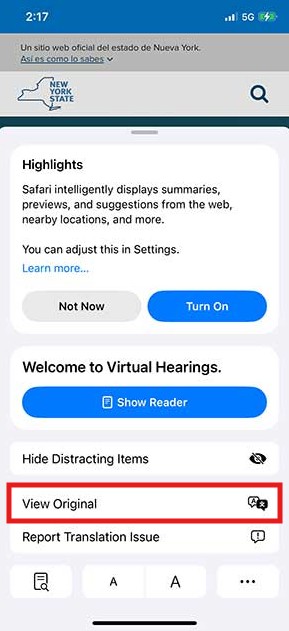
To revert to the original language:
-
Tap the translate icon (
 ) on the left side of the bottom address bar: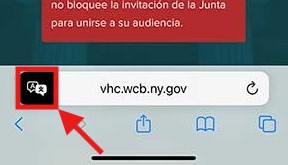
-
Tap "View Original":
-
Additional resource
Disclaimer
Disclaimer regarding the use of "browser and mobile device translation capabilities."
Browser and mobile device translation capabilities cannot translate all types of documents and may not provide an exact translation. Anyone relying on information obtained from browser and mobile device translation capabilities does so at their own risk. The State of New York does not make any promises, assurances, or guarantees as to the accuracy of the translations provided. The State of New York, its officers, employees, and/or agents shall not be liable for damages or losses of any kind arising out of, or in connection with, the use or performance of such information, including but not limited to, damages or losses caused by reliance upon the accuracy of any such information, or damages incurred from the viewing, distributing, or copying of such materials.