eForm information
| Form ID | Form title | Who files | Where to file | When to file | Submittal options |
|---|---|---|---|---|---|
| RFA-2 | Request for Further Action by Insurer/Employer | Insurance carrier or Board-approved self-insured employer | Electronically filed with the Workers' Compensation Board, with PDF copy to claimant and claimant's representative, if any. | The form may be filed at any time after the assembly or indexing of a claim or after the Board has indicated that no further action (NFA) will be taken. |
|
Submitting via eCase
The new RFA-2 retained the original three request categories (Compensation, Medical, and Other). Each category will have applicable request reasons that have been revamped for clarity and to obtain more details to ensure efficient processing.
Based on the request reason selected, the eForm will present guided questions and fillable sections required to submit the eForm.
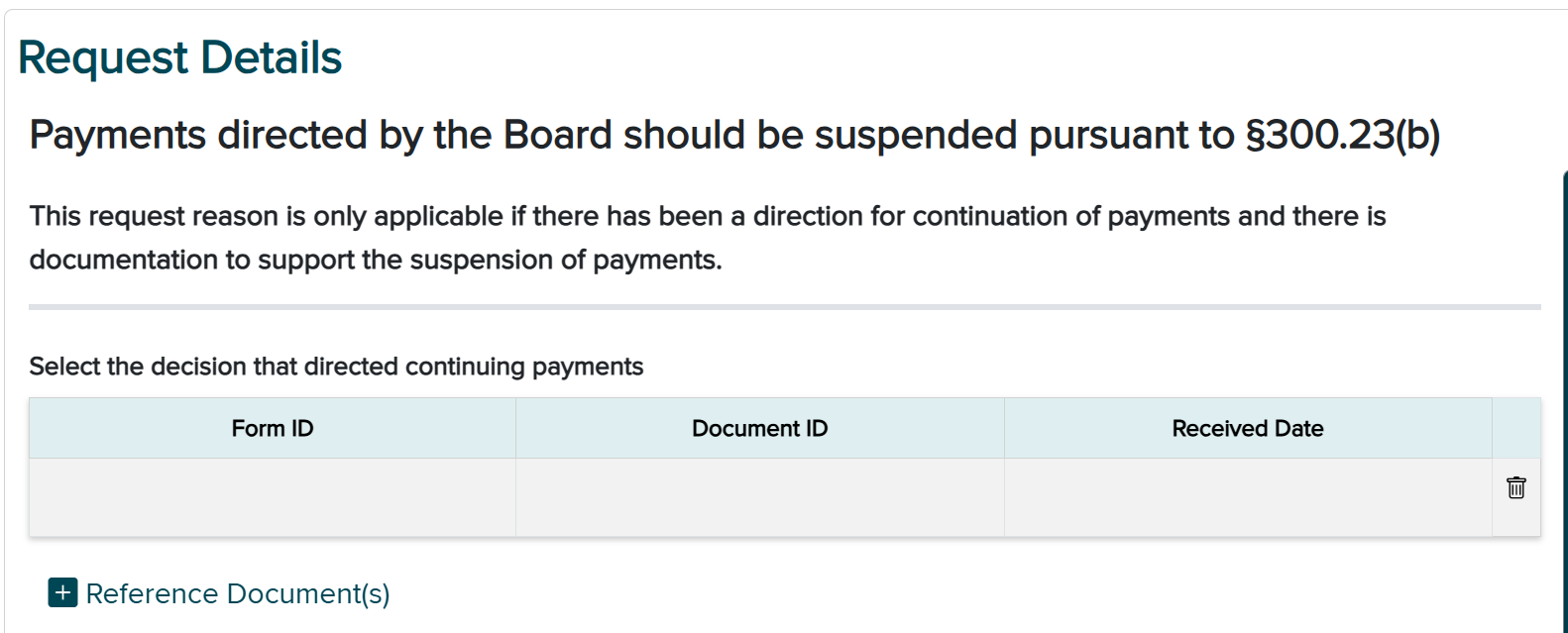
For example, when the request reason "Payments directed by the Board should be suspended pursuant to §300.23(b)" is selected, the user will see:
-
Select "the decision that directed continuing payments."
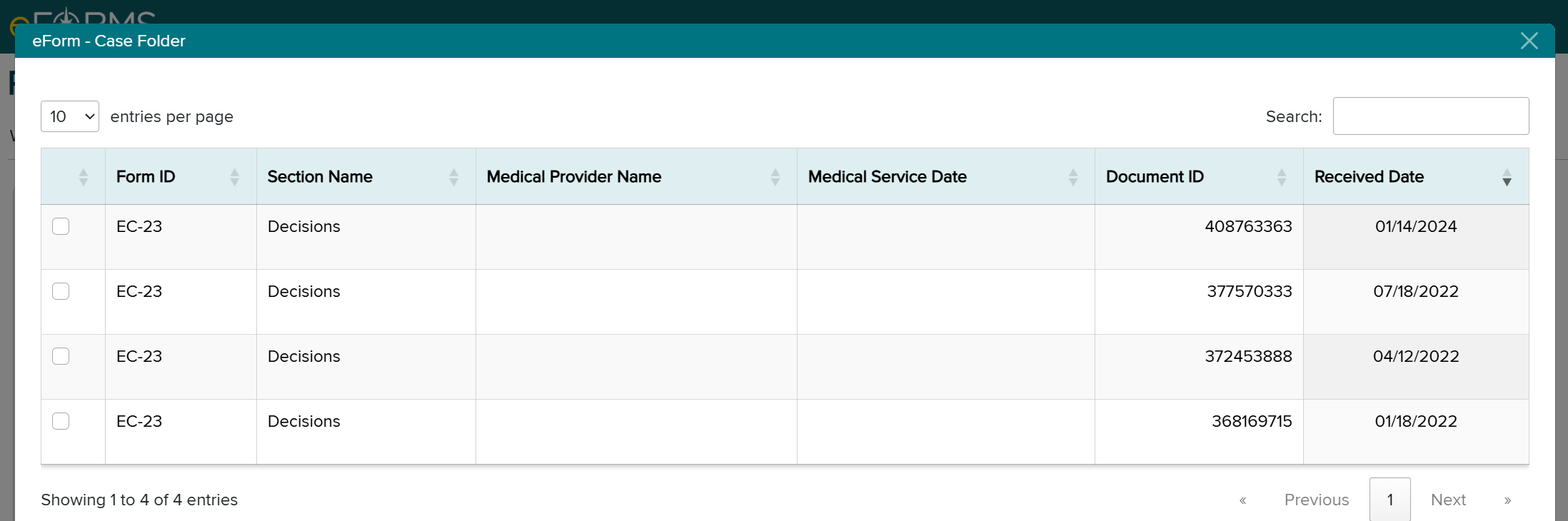
- Selecting the Reference Documents button will display the eForms - Case Folder pop up window. Only applicable decisions will be listed or if the decision is not listed the user may select the "Decision not listed" check box. If there is no decisions, the user must "enter the filing date of the decision or the date of the hearing that directed payments."
-
Select the most applicable option(s). Each option will have subsequent fields to complete.
- "Medical evidence finds no disability or fails to support ongoing disability"
- "No medical evidence of a disability produced in the past 90 days"
- "Failure to appear at one or more IMEs without good cause or sufficient excuse"
- "Claimant has voluntarily removed themselves from or is no longer attached to the labor market"
- "Claimant was directed in a Board decision to look for work and has not produced sufficient evidence"
- "Medical documentation of apportionment"
- "Claimant's disability is unrelated to established injury"
- "Claimant/beneficiary whereabouts are unknown"
- "Claimant did not produce documentation as directed in Board decision"
- Optional - a 500-character free form text box for additional information related to the request reason.
Once all questions and sections are complete, submit the eForm. See below for an in-depth breakdown of each step of the eForm.
eForm button in eCase
Once logged into eCase, and a case number is entered, users will see an eForm button.

eForm landing page
After selecting the eForm button, you will be taken to the eForm landing page shown below.
From here, you can start a new eForm, as well as view all drafted and submitted eForms.
The landing page contains eight columns:
- eForm
- Status (eForm statuses are Submitted, Rejected, and Draft)
- Last Saved Date
- User
- Submission ID
- Submission Date
- Document ID
- Medium (Displays how the eForm was submitted - WEB, API, FTP)

To start a new eForm, go to the Select a form to submit drop-down list and select RFA-2 - Request for Further Action by Insurer/Employer. Then select the Start eForm button.

Selecting a request reason
Once a new RFA-2 eForm is started, the page below will display on the screen. This page shows the request reasons. There are three categories of request reasons:
- Compensation
- Medical
- Other
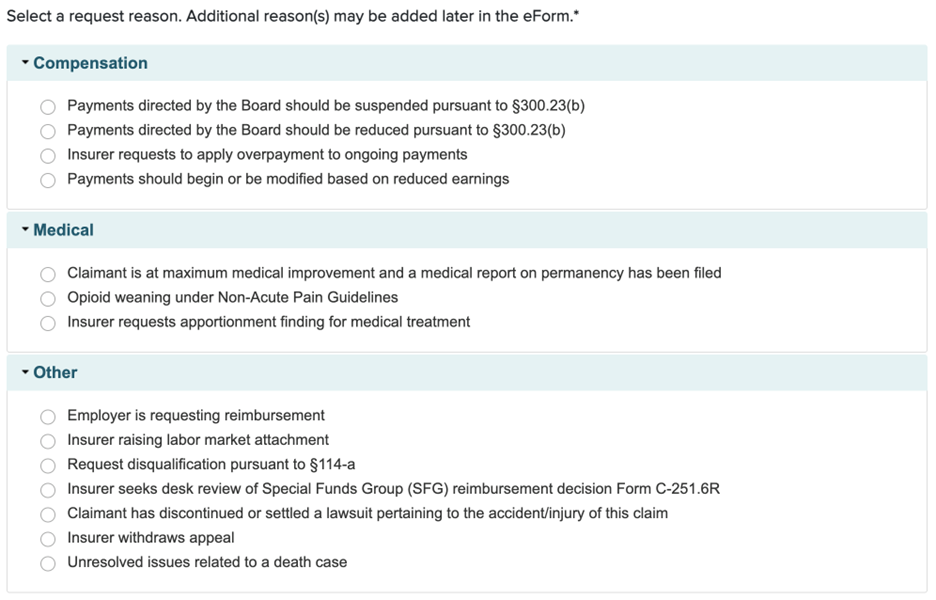
Select a request reason, and then click Save & Continue.
Completing the Request Details page
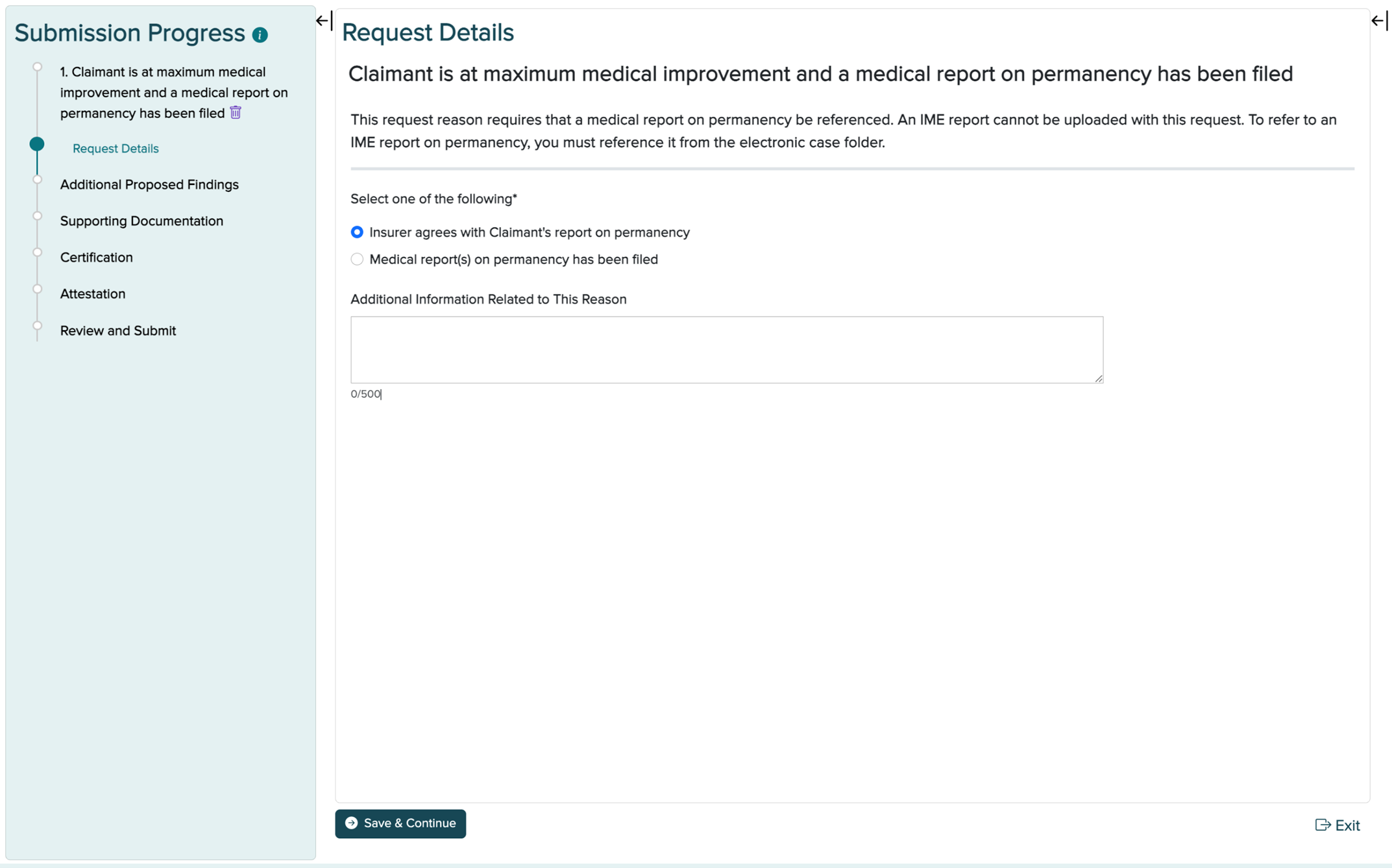
After selecting a request reason, you will be prompted to fill in the request details on the Request Details page. See Request Reason Quick Guide below for important information on request reasons.
If the request reason selected requires a document to be referenced, only the appropriate documents that can be referenced will be available for selection in the pop-up that displays. Example: the request reason "Payments directed by the Board should be suspended pursuant to §300.23(b)" is selected and the user needs to "select the decision that directed continuing payments." Only decisions will be available for selection in the pop-up that displays.
| Request reason (RR) | Use for | Conditions for display | Requires certification | Link to resources | Reason abbreviation (API/XML) | RR medical provider name field value in eCase | Image example |
|---|---|---|---|---|---|---|---|
| Payments directed by the Board should be suspended pursuant to §300.23(b) |
Medical evidence finds no disability or fails to support ongoing disability No medical evidence of a disability produced in the past 90 days Failure to appear at one or more IMEs without good cause or sufficient excuse Claimant has voluntarily removed themselves from or is no longer attached to the labor market Claimant was directed in a Board decision to look for work and has not produced sufficient evidence Medical documentation of apportionment Claimant's disability is unrelated to established injury Claimant/beneficiary whereabouts are unknown Claimant did not produce documentation as directed in Board decision |
Always displays | This reason requires certification when the following occurs:
|
Workers' Compensation Benefits | CPD | suspend | |
| Payments directed by the Board should be reduced pursuant to §300.23(b) |
Medical evidence finds a change in disability Average weekly wage (AWW) set without prejudice and continuing payments are at a tentative rate Medical documentation of apportionment |
Always displays | Yes | Workers' Compensation Benefits | CPR | reduce | |
| Insurer requests to apply overpayment to ongoing payments | A decision directed continuing payments and credit for an overpayment is requested | Always displays | Yes | CPI | ovrpay | ||
| Payments should begin or be modified based on reduced earnings | Claimant has returned to work and there is a difference between current earnings and the pre-injury average weekly wage | Will not display for volunteer firefighter/ambulance worker cases | Yes | Workers' Compensation Benefits | CPS | re |
| Request reason (RR) | Use for | Conditions for display | Requires certification | Link to resources | Reason abbreviation (API/XML) | RR medical provider name field value in eCase | Image example |
|---|---|---|---|---|---|---|---|
| Claimant is at maximum medical improvement and a medical report on permanency has been filed | Insurer agrees with claimant's report on permanency Medical report(s) on permanency has been filed and action is being requested |
Always displays | No | Guidelines for Determining Permanent Impairment and Loss of Wage Earning Capacity Overview | MCI | mmi | |
| Opioid weaning under Non-Acute Pain Guidelines | Request opioid weaning when there's medical documentation indicating weaning goals and recommended weaning program/resources | Always displays | Yes only if claimant is represented | New York Medical Treatment Guidelines | MOW | opioid | |
| Insurer requests apportionment finding for medical treatment | Medical documentation of apportionment is available, and you are not requesting reduction or suspension of payments | Always displays | Yes | Glossary Description: A proportionate division of all or part of the benefit costs in a case between two or more injury claims for the same claimant, based on an evaluation of the relative contribution that the injuries have made to the claimant's permanent disability. Apportionment can also occur in a case when a claimant has one injury claim but has other injuries unrelated to their injury claim due to a prior injury outside of work. | MIA | apport |
| Request reason (RR) | Use for | Conditions for display | Requires certification | Link to resources | Reason abbreviation (API/XML) | RR medical provider name field value in eCase | Image example |
|---|---|---|---|---|---|---|---|
| Employer is requesting reimbursement | Employer reimbursement request is available and action is requested to direct reimbursement for a period(s) of lost time | Will not display for volunteer firefighter/ambulance worker cases | Yes | Glossary Description: A request by an employer for reimbursement for wages paid to an employee for a period during which the employee was eligible to receive workers' compensation or disability benefits. | OER | reimb | |
| Insurer raising labor market attachment | To request a Board direction that the claimant search for work when there has been a judicial determination finding a partial disability or all medical evidence in the file finds a partial disability (This should not be used to request suspension of payments) |
Always displays | No | Labor Market Attachment | OIL | lma | |
| Request disqualification pursuant to §114-a | Documentation and/or evidence supports disqualification pursuant to §114-a | Always displays | No | ORD | 114a | ||
| Insurer seeks desk review of Special Funds Group (SFG) reimbursement decision Form C-251.6R | Desk review of SFG reimbursement decision Form C-251.6R (Submission of all related forms and emails to and from the SFG per SN046-1063R is required and new evidence may not be submitted) |
Always displays | No | Procedural Updates on Special Funds Group Reimbursement and Establishment of Section 15(8) Claims | OID | 251.6r | |
| Claimant has discontinued or settled a lawsuit pertaining to the accident/injury of this claim | Closing statement and consent letter is available Stipulation of discontinuance and consent letter is available Closing statement and nunc pro tunc order is available Stipulation of discontinuance and nunc pro tunc order is available Claimant has not responded to Insurer's attempts to obtain documents or has settled or discontinued lawsuit without consent |
Always displays | Yes | Glossary Description: Lawsuits against equipment manufacturers, facility owners and other non-employer parties whose products or services contributed to the occurrence of an accident. Under the Workers' Compensation Law, a compensation claim is a worker's sole remedy against the employer, but lawsuits may be initiated against third parties for contributory negligence, product defects, etc. | OCD | 3pa | |
| Insurer withdraws appeal | You are the party that filed the appeal and its being withdrawn in its entirety | Always displays | No | Appeals | OIW | rb89 | |
| Unresolved issues related to a death case |
Further action requested on a death case Spouse remarried Beneficiary reaches 18, 23, or 25 (25 only applicable to Volunteer Ambulance and Volunteer Fire cases) Beneficiary is no longer a student Beneficiary is a student Beneficiary cannot be located Beneficiary has passed away Other Issue |
Always displays | Yes | Death Claims | OUI | death | |
| Additional Proposed Findings | Use For | Conditions for Display | Requires Certification | Link to Resources | Abbreviation (API/XML) | Medical Provider Name field value in eCase | Image Example |
| Establish case (ANCR/ODNCR) | Always displays | Yes | pf | ||||
| Establish average weekly wage (AWW) | Will not display for volunteer firefighter/ambulance worker cases | Yes | pf | ||||
| Award lost wage benefits not in dispute | Always displays | Yes | pf |
In the example below, the request reason "Claimant is at maximum medical improvement and a medical report on permanency has been filed" was selected. Next, you will complete the information fields required. Select Save & Continue when you are finished.
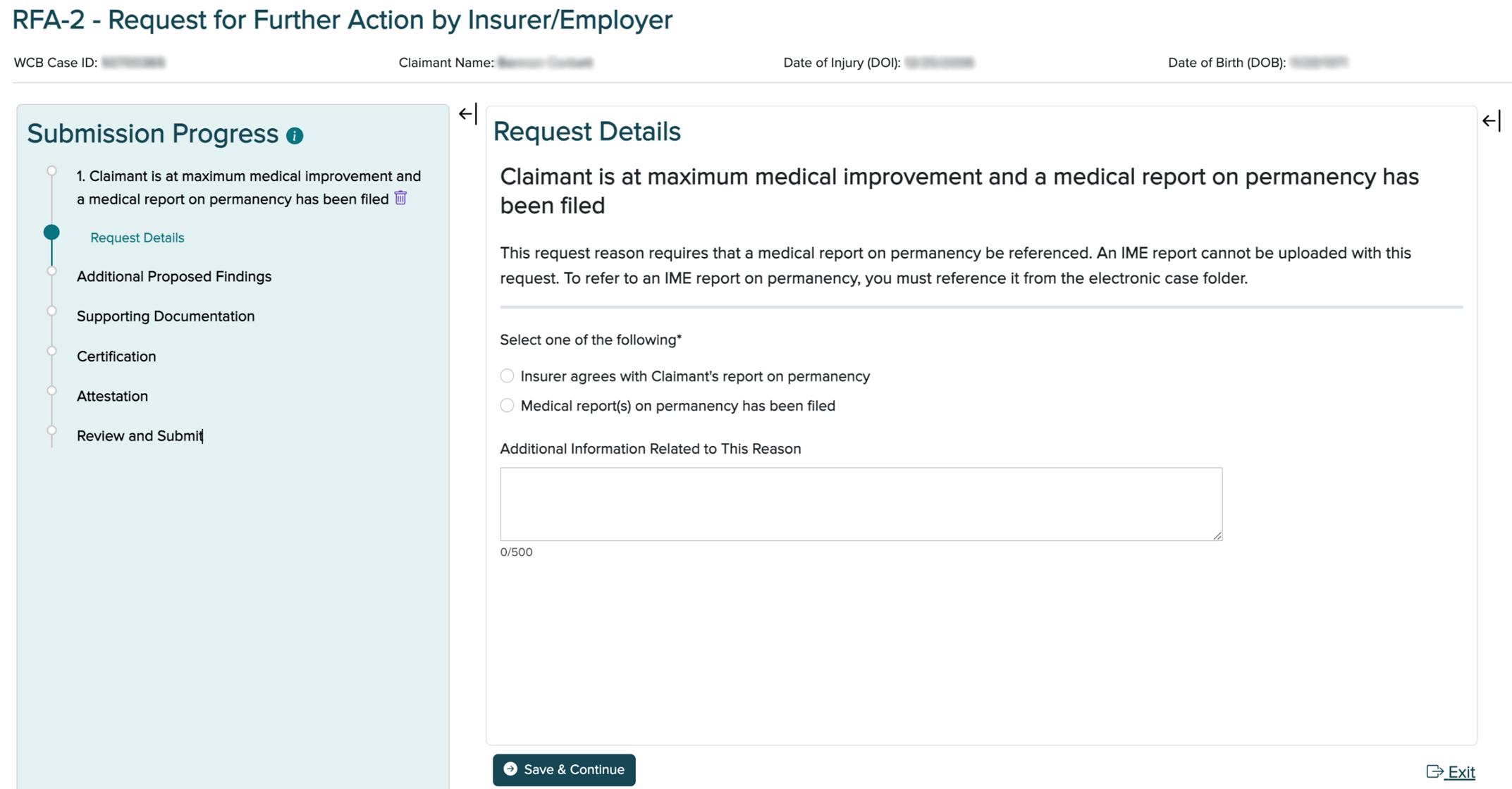
Submission Progress panel
The Submission Progress panel allows you to keep track of the eForm's progress as you complete each step.
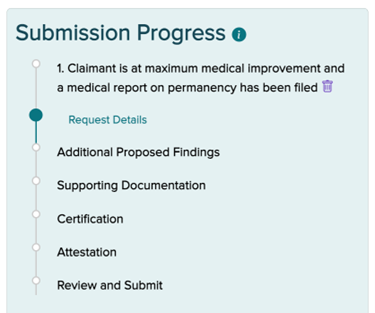
Saving a draft
You can save a draft or exit at any point while filling out the eForm. When you select Exit, the message window below displays on the screen. If you select "Confirm," you are acknowledging that the progress on the current step you are on will be lost and a draft with all previously completed information will be saved.

Adding another request reason
Multiple reasons can be submitted on an RFA-2 eForm. You may add another request reason once the first request reason has been completed. After saving the request details, a prompt will appear asking if you want to add another request reason. Select Yes to add an additional request reason.

Editing a request reason
To edit request details, select the pencil icon shown on the Submission Progress panel.
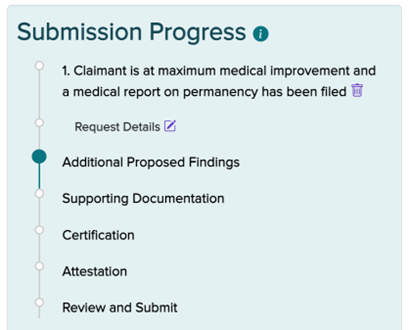
Note: You must click the Save & Continue button in order for the pencil icon to appear next to a step in the eForm.
Deleting a request reason
If a request reason was selected in error, select the trash can icon displayed in the Submission Progress panel. This will delete the request reason and return you to the list of reasons.
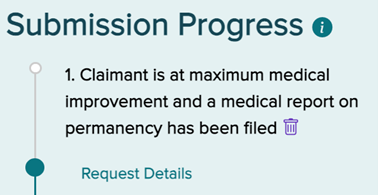
Upon selecting this icon, you will be prompted to confirm deletion of the record.
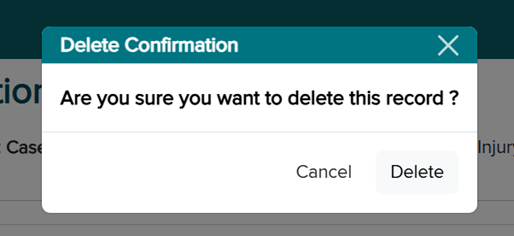
Select Delete.
Additional Proposed Findings page
The Additional Proposed Findings page allows you to add findings that are not in dispute or select no additional proposed findings. The options to select are No additional proposed findings, Establish case (ANCR/ODNCR), Establish average weekly wage (AWW), or Award lost wage benefits not in dispute.
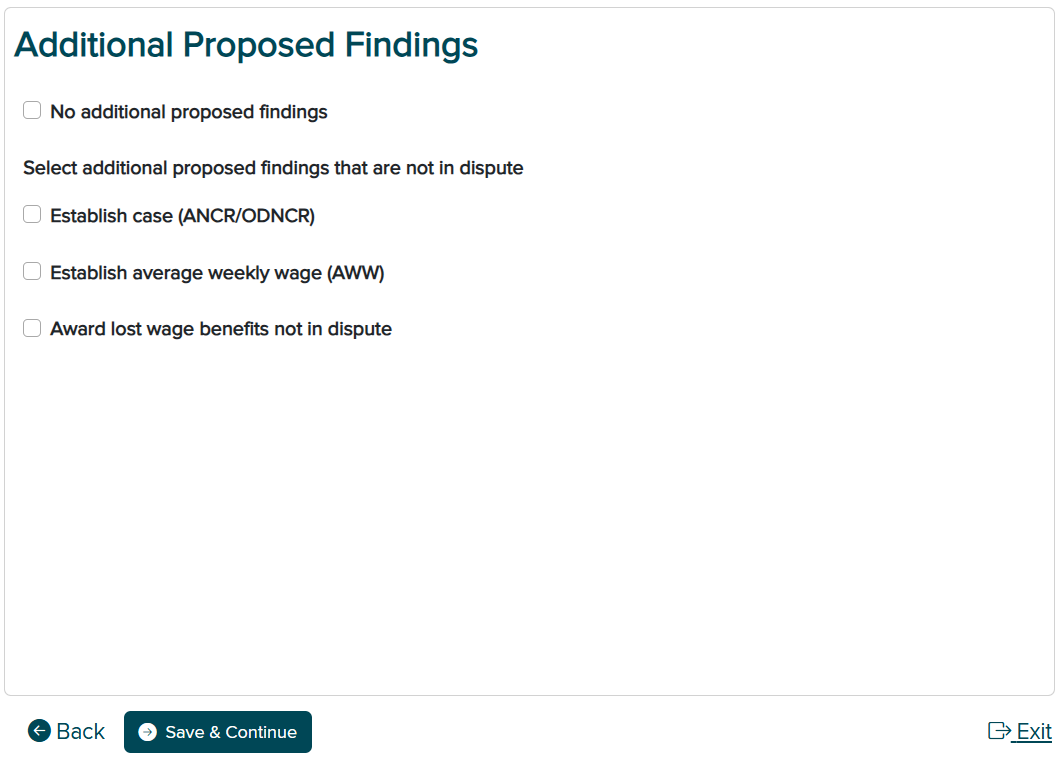
When the box is checked for any of these options, the eForm will have information for that additional proposed finding. For example, if Establish case (ANCR/ODNCR) is selected, the user will enter the required data fields.
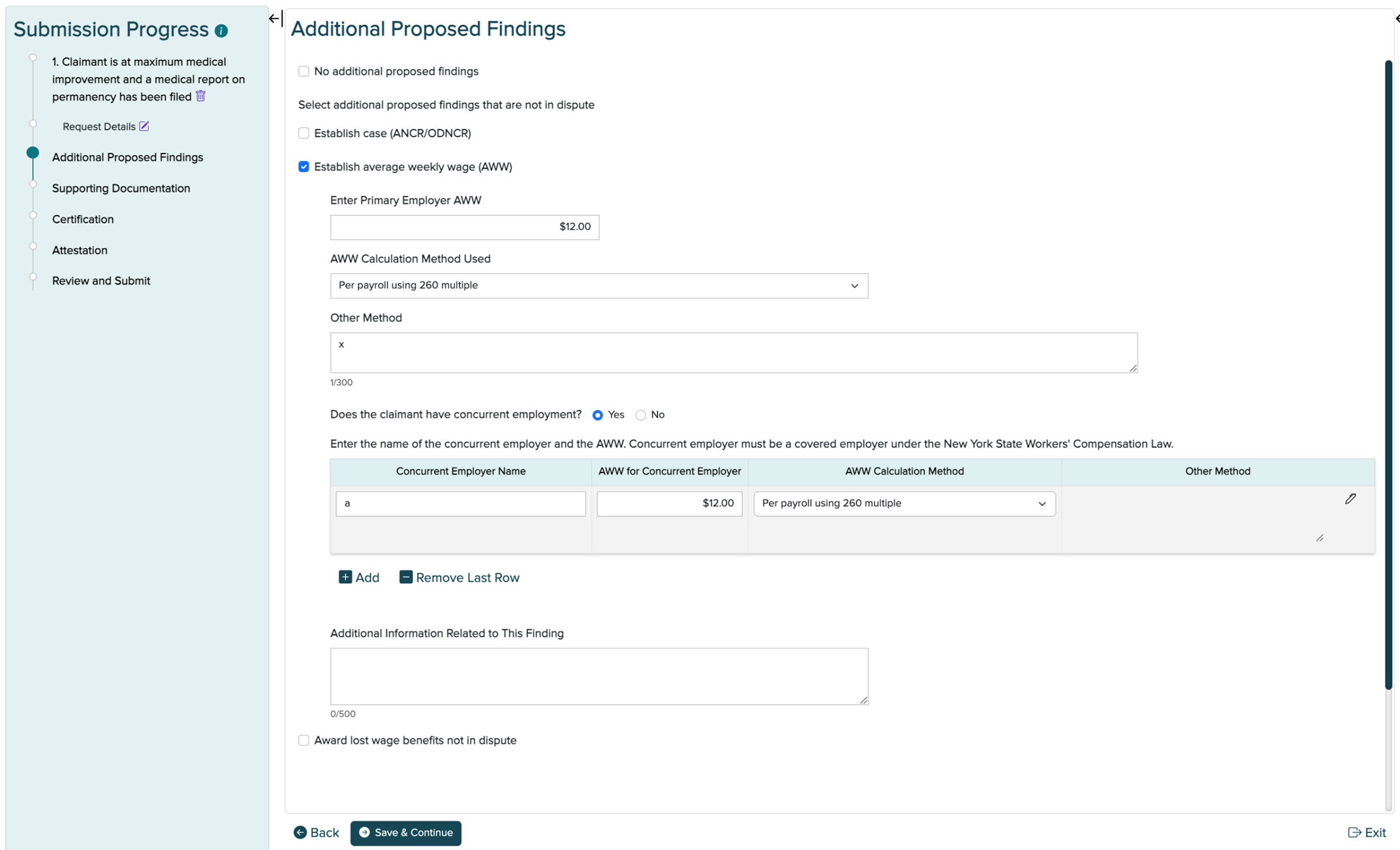
If there are no additional proposed findings, select No additional proposed findings at the top of this section.
Supporting Documentation page
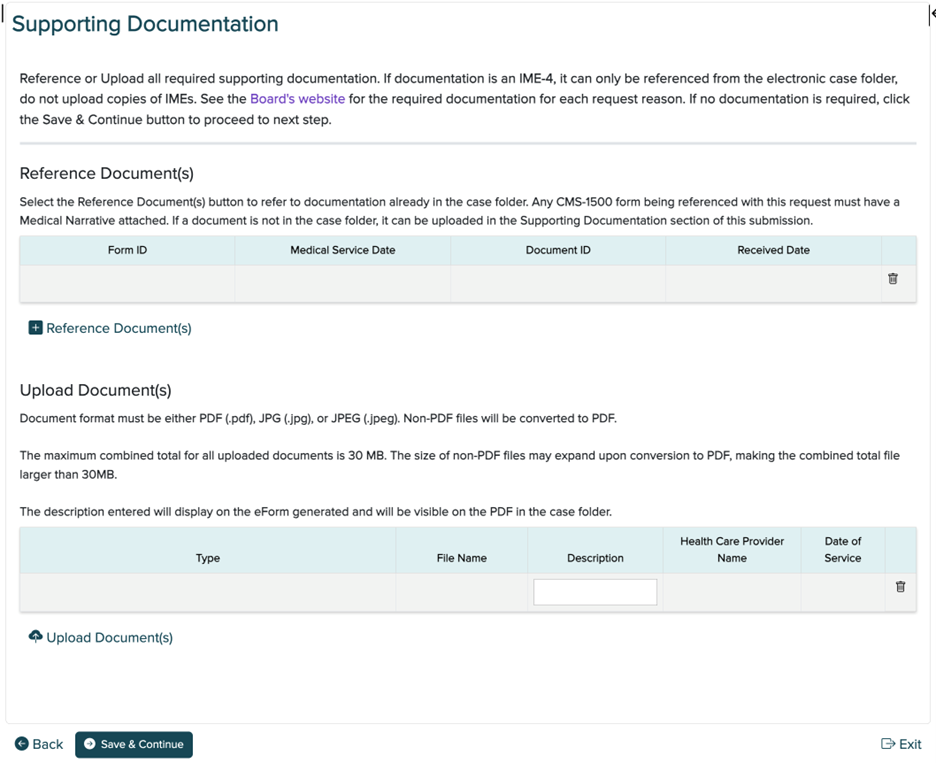
The Supporting Documentation page allows you to reference documents from the case folder or upload supporting documentation for the eForm. Please refer to the Required Document Matrix (MS Excel) for more information on required documentation.
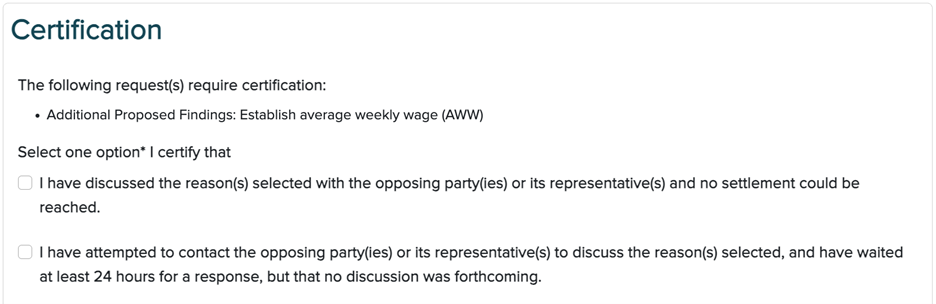
Certification page
Certification may be required for a request reason/additional proposed findings. It is the responsibility of the submitter to serve all parties, including any official Board eForm submission.
Note: The certification date cannot be the current date when selecting the second option.
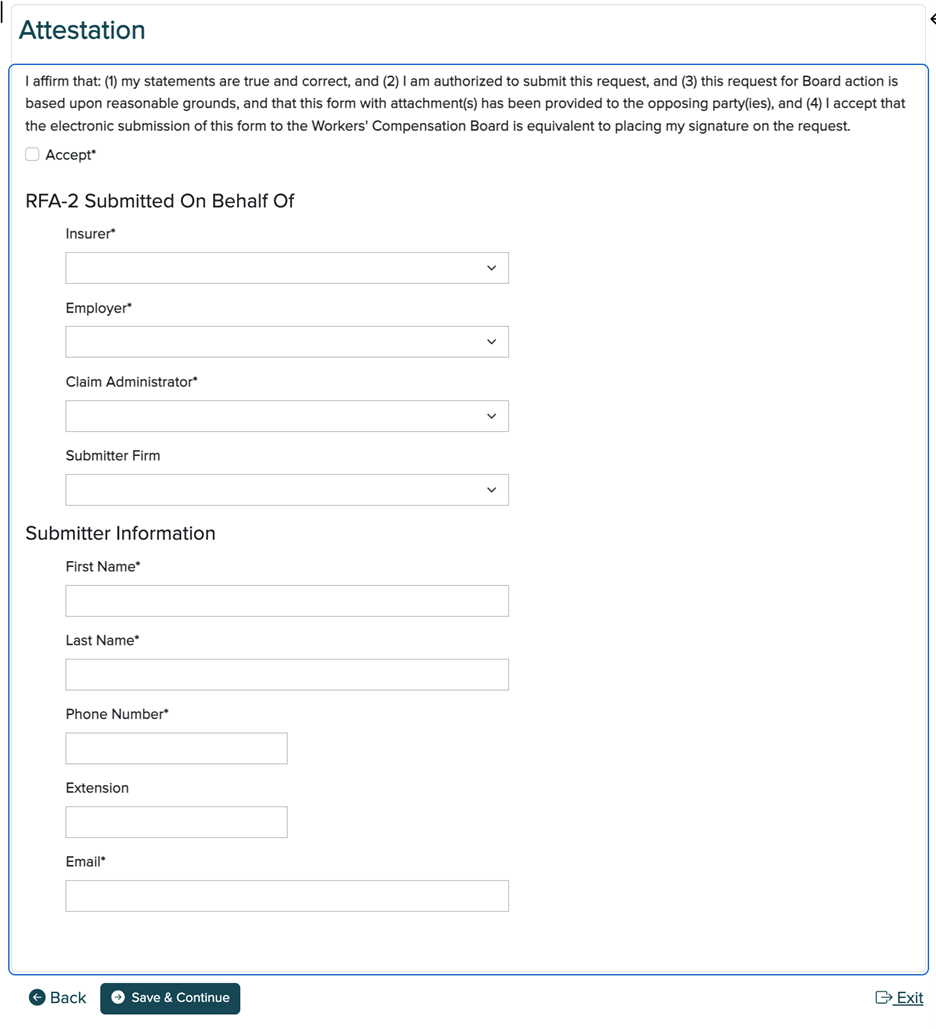
Attestation page
To submit the eForm, you must accept the Attestation. First, select Accept, and then enter the required information for who the RFA-2 is submitted on behalf of and the submitter information.
Review and Submit page
Prior to submitting the eForm, you will have a chance to review a draft of your submission. Click the Back button to edit the eForm or delete a request reason.
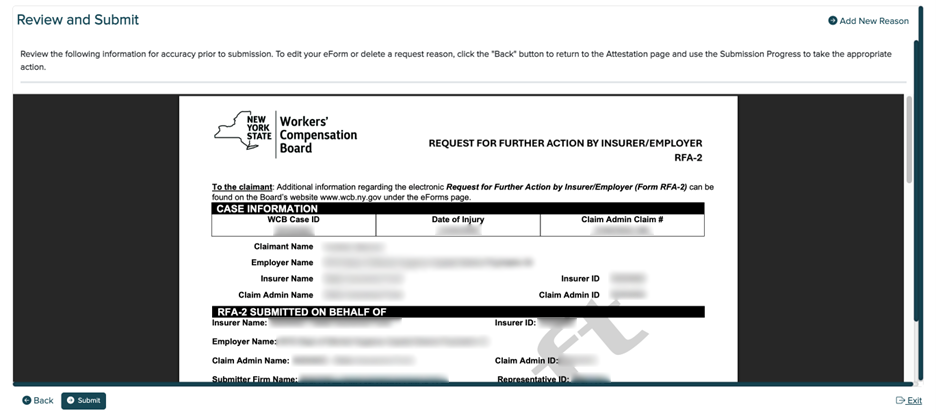
Select Submit to finish the submission.
Upon submission, the system automatically generates a PDF and places it in the case folder. You will be able to view/print/download the PDF from the eForms landing page and via eCase. You can also view submitted eForm details, including submitted status, on the eForms landing page.

Submitting via API or XML file
- Registration Instructions PDF
- Testing Requirements for API Submission PDF
- Testing Requirements for XML File Submission PDF
Requirements and examples
| File name | Description |
|---|---|
| RFA-2-XML-Data-Requirements-and-Edits.xlsx | XML documentation/guidelines for RFA-2 XML data elements. This spreadsheet contains list of error codes, list of valid values, element requirements and element rules. |
| Rfa2MultiReason.xml | XML layout example for RFA-2 submission of multiple request reason codes. |
| Rfa2SingleReasonMia.xml | XML layout example for RFA-2 submission of request reason code MIA (Insurer requests apportionment finding for medical treatment). |
| Rfa2SampleCpi.xml | XML layout example for RFA-2 submission of request reason code CPI (Insurer requests to apply overpayment to ongoing payments). |
| eFormsRfa2XMLAckTemplate.xml | XML acknowledgement template for RFA-2. After processing the API submission the acceptance and rejection of the transaction will be returned back to the sender. |
| eFormsRfa2XmlTemplate.xml | XML template for the RFA-2 submission. This template contains the data elements for all submission reasons. It is recommended to review the API requirements and edits spreadsheet for the submission reason specific data element list. |
| eFormsRfa2.xsd | XML schema definition for RFA-2 XML data submission. API submitters are expected to use this schema definition to validate the data before sending XML submission via API. |
| Required-Document-Matrix.xlsx | This document will assist you in determining if supporting documentation will be needed (referenced or submitted) when submitting the RFA-2. |
| Submitted-RFA-2-Sample-1.pdfPDF | This is a sample of a generated RFA-2 after it was submitted to the Board for when payments directed by the Board should be suspended pursuant to §300.23(b). |
| Submitted-RFA-2-Sample-2.pdfPDF | This is a sample of a generated RFA-2 where there are multiple reasons for the form submission, including additional proposed findings. Certification section displays second option. |
| Submitted-RFA-2-Sample-3.pdfPDF | This is a sample of a generated RFA-2 where there are multiple reasons for the form submission, including additional proposed findings. Certification section displays first option. |
FAQs
-
Will the eForm option automatically be available beginning March 20, 2026, or is there a separate step that an eCase user may need to take to ensure they have this access?
It will automatically be available on March 20th. Users will need to perform a successful case search in eCase with case details displayed, before the eForm button appears.
-
Can an insurer submit an RFA-2 on a case if they're not a party of interest?
No, the insurer must be on notice.
-
Why don't I see the eForm button?
If you are a carrier attorney granted view only access, the eForm button will not display. Only attorney's who were placed on notice by the carrier's eCase administrator will have the ability to file an RFA-2.
-
Is there an opt-out option (e.g., submitting by U.S. mail)?
No, you must submit electronically starting on March 20, 2026. After this date, the Board will not accept or act on any paper RFA-2 forms submitted by insurers/employers.
-
Is there an option to download the completed RFA-2 eForm?
Yes, you can download or print a PDF of the completed eForm. Submitted eForms are placed in the case folder and can be viewed from the eForms landing page using the Submission ID hyperlink. The hyperlink will open the PDF.
-
Does a copy of the eForm automatically get sent to the required parties (e.g., claimant attorney, claimant)?
No, a copy of the completed RFA-2 eForm is not automatically sent to the required parties. It is the responsibility of the insurer or their representative to download and print the completed eForms and serve all parties the RFA-2 and any uploaded documents following the same methods currently being used to serve all parties.
-
Do we need to copy the Board (by email or mail) when sending a completed RFA-2 to the parties?
No, do not copy the Board on any external outreach to parties. Retain a copy for your records. You may be subject to penalty if you copy the Board because you are submitting a duplicate of the RFA-2 that's in the file.
-
Is there any way to fix mistakes on the RFA-2 eForm after it is submitted?
No, once the RFA-2 is submitted, no other changes can be made. However, the form can be saved and edited as a work in progress before submission.
-
How does an insurer/employer withdraw an RFA-2 that was submitted?
You cannot cancel the RFA once it's been submitted, but you can send correspondence to the Board and parties of interest stating that you withdraw the RFA-2 that was filed.
-
Can supporting documentation be attached after the RFA-2 is filed?
No, the attachments must be filed with the original RFA-2 before it is submitted. For attachments after submission, submit the documentation with correspondence relating it to the RFA-2. Do not file a second RFA-2.
-
Is supporting documentation required for every RFA-2 submission?
Use the Required Document Matrix file (MS Excel) from the Requirements and examples section above to assist you in determining if supporting documentation will be needed (referenced or uploaded).
-
Can multiple insurer/employer users access and update eForm drafts on the landing page?
There can only be one draft per WCB case number. Only one person can work in a WCB case number at a time. One user can start an eForm, save a draft, and another user can resume that draft and save or submit it.
-
How long do I have to wait to submit an RFA-2 after attempting to contact opposing parties to discuss the request reason(s) selected?
If you attempted to contact the opposing parties and no discussion was forthcoming, you must wait 24 hours before submitting an RFA-2.
-
Is the certification a required field that an attempt was made to reach a settlement for issues?
Certification may be required for a request reason/additional proposed findings. It is the responsibility of the submitter to serve all parties, including any official Board eForm submission.
Note: The certification date cannot be the current date when you have attempted to contact the opposing parties and no discussions were forthcoming because you have to wait at least 24 hours for a response.
-
Will the RFA-2 eform be required to also be sent to claimant's treating providers as we do now when suspension (box a) or reduction (box b) of payments are selected on the paper RFA-2 form?
Yes, there is no change to that requirement.
-
Can the eForms button be used for filing a SROI-SA?
No. Guidance on filing a SROI can be found on the eClaims page.
-
What if my request reason is not included on the RFA-2 eForm?
First, consider whether the Board needs a request on that topic. For example, any of the following will automatically trigger Claims action without the need for an RFA-2 or correspondence: Section 32 waiver agreement, Stipulation (Form C-300.5), and Agreed Upon Proposed Decision Findings (Form C-312.5). Sending unnecessary requests will cause delays with the processing of these forms.
For other issues that do not result in an automated Board action, the insurer/employer may submit correspondence. Do NOT file an RFA-2 using a request reason that does not apply.
-
How do I request to cancel a duplicate case?
Submit an online claims inquiry and select "Cancel/combine case".
-
How do I request cross-examination of the claimant's health provider?
Most situations are covered by a request reason and you can include the cross-examination request in the free text box. The insurer can submit correspondence for any other cross-examination requests not covered in the RFA-2.
-
How do I request Section 44 apportionment?
Correspondence may be submitted to raise this issue.
-
How do I request a hearing to address reimbursement from another carrier that has not complied with a direction by the Board?
Correspondence may be submitted to raise this issue.
-
How do I request to suspend payments when selecting reason 'Request disqualification pursuant to §114-a'?
In the free form text box state that you are requesting to suspend payments in addition to listing the documentation/evidence to be produced.
-
My reason for requesting suspension of payments is not listed. How do I request to suspend payments?
First, consider if the Board requires a request for that topic. If the suspension reason is not listed, a Subsequent Report of Injury (SROI) with supporting evidence may be appropriate in lieu of an RFA-2. These are some examples when a SROI should be filed per 12 NYCRR 300.23 (a) & (b): proof of incarceration upon conviction of a felony, evidence of claimant's return to work, and death of a claimant. Additional information on how to file a SROI can be found on the eClaims page.
-
How can I attach evidence?
On the RFA-2 eForm, select the appropriate request reason. Documents can be selected from the case file or uploaded from the user's device within that request reason.
-
How do I document an overpayment?
If you are requesting that an overpayment credit be applied to continuing payments then select reason 'Insurer requests to apply overpayment to ongoing payments'.
If there are no continuing payments, submit correspondence to the Board with the overpayment amount, supporting documentation, and details of how the overpayment was created.
-
How do I request that cases be set to travel?
If you are submitting an RFA-2 you can include this request in the additional information free form text field, or correspondence may be submitted for this request.
-
When a schedule loss of use is at issue, how do I raise sufficiency/credibility of the treating physician's opinion as noted on an EC-81.7?
In lieu of depositions on permanency, the carrier/employer may raise an argument regarding the sufficiency and credibility of the claimant's permanency opinion. Written arguments on the issue must be received by the Board within seventy-five (75) days of the EC-81.7. An RFA-2 is not necessary.
-
What if the claimant refuses to sign a release for medical or case records?
You may submit correspondence to raise this issue and reference/attach supporting documentation. Detailed guidance on this topic can be found on the Use of the C-3.3 in Controverted and Non-Controverted Claims page.
If the claimant has failed to comply with a Board direction to submit a medical release and there is also a direction to continue payments, you may file an RFA-2 to suspend payments using request reason "Payments directed by the Board should be suspended pursuant to §300.23(b)" and sub-reason of "Claimant did not produce documentation as directed in Board decision". If there is no direction to continue payments, you may submit correspondence to raise this issue.
-
What is the best way to address outstanding C-8.1Bs with the new RFA-2 form when we are ready to close out the case with either a stipulation or a Section 32 agreement?
When a Section 32 agreement waives medical treatment any outstanding C-8.1Bs must be resolved by the Section 32 agreement. C-8.1Bs may also be resolved as part of the stipulation agreement. If outstanding C-8.1Bs are not being resolved within the stipulation or indemnity only Section 32 agreement, then they will be addressed through the issue resolution process and an RFA-2 is not needed.
-
Where is the 'Other' box and how do I enter free text?
When selecting a request reason there is a free text option within the Request Details step to add additional information specifically related to that request reason.
If there isn't a reason that applies to your request, then submit correspondence with details of your request and reference/attach supporting documentation if required. Do NOT file an RFA-2 using a request reason that does not apply.
-
Is an RFA-2 needed when the claimant has passed away?
No, an RFA-2 is not needed. If there are continuing payments file a SROI suspending payments due to the claimant's death. The Board will review the filing and issue an administrative decision to update awards to the date of death.
If there are no continuing payments send correspondence to the file advising of the claimant's death and note any outstanding issues that need to be resolved.
Any available documentation regarding the claimant's death may be submitted to the case folder (e.g. death certificate).
-
How can I check the status of a previously submitted RFA-2? Should we file another RFA-2?
No, do not file a duplicate RFA-2. If required, status on a previously submitted RFA-2 may be checked by submitting an online claims inquiry and selecting "Request for Further Action (Form RFA-2) status." Please give the Board at least 30 days before submitting an inquiry.
-
Do copies of uploaded documents and referenced document IDs need to be included with the RFA-2 when sending it to parties?
The insurer or their representative must download and print the completed eForms and serve all parties the RFA-2 and any uploaded documents following the same methods currently being used to serve all parties. Referenced document IDs that are in eCase do not need to be included.
-
If we upload a document with the RFA-2 and it is not yet in eCase, do we also upload the document to eCase?
No, the RFA-2 along with uploaded documents will appear at the same time in the case folder.
-
How do I follow up on previously submitted correspondence that requested Board action?
If required, status on a previously submitted correspondence may be checked by calling the Board at (877) 632-4996. Please give the Board at least 30 days to process before calling.
-
How do I request a case(s) to travel with another case?
If you are filing an RFA-2 you can include this request in the free text option of the request reason. Otherwise, correspondence may be submitted for this request.
-
How do I file an RFA-2 when we are not the proper insurer on a claim or there is no New York jurisdiction?
If the case has been indexed, file a FROI-04 (include any additional details in the narrative section) and submit supporting documentation to the case folder if applicable.
If the case has not been indexed, you may file correspondence raising the issue and include any supporting documentation.
Resources
Need help or have feedback? Email OnBoard@wcb.ny.gov. Please include the following in your correspondence, where applicable:
- User ID
- R#, W#, T#
- Request reason(s)
- Field or XML data element name
- Details of issue
- Screen shot
Additional resources
Request for Further Information by Insurer/Employer (Form RFA-2) Training Webinar – March 2026: Video opens external website / SlidesPDF
RFA-2 technical outreach webinar – July 2025: Video opens external website / SlidesPDFPDF
RFA-2 Payer Engagement Sessions April 2025PDF
Technical support
For technical assistance, please email WCBTechnicalSupport@wcb.ny.gov.