Overview
Virtual hearings allow injured workers, attorneys/representatives, witnesses, and others to attend workers' compensation hearings online. You can participate from home, work, or wherever is most convenient. Claimants can also appear with attorneys at their office. All attorneys are required to appear on video, with their faces fully visible on screen. Represented claimants testifying in virtual hearings are required to appear and testify by video with their faces fully visible on screen. Unrepresented claimants who are testifying and all claimants who are not testifying may appear by phone, if unable to join by video.
To participate in a virtual hearing, all you need is a computer (preferred) or mobile device with a camera and access to reliable high-speed internet service. If you do not have a reliable WiFi internet connection (at least 1 - 1.5 megabits per second), a wired connection is preferred.
Before you begin your hearing
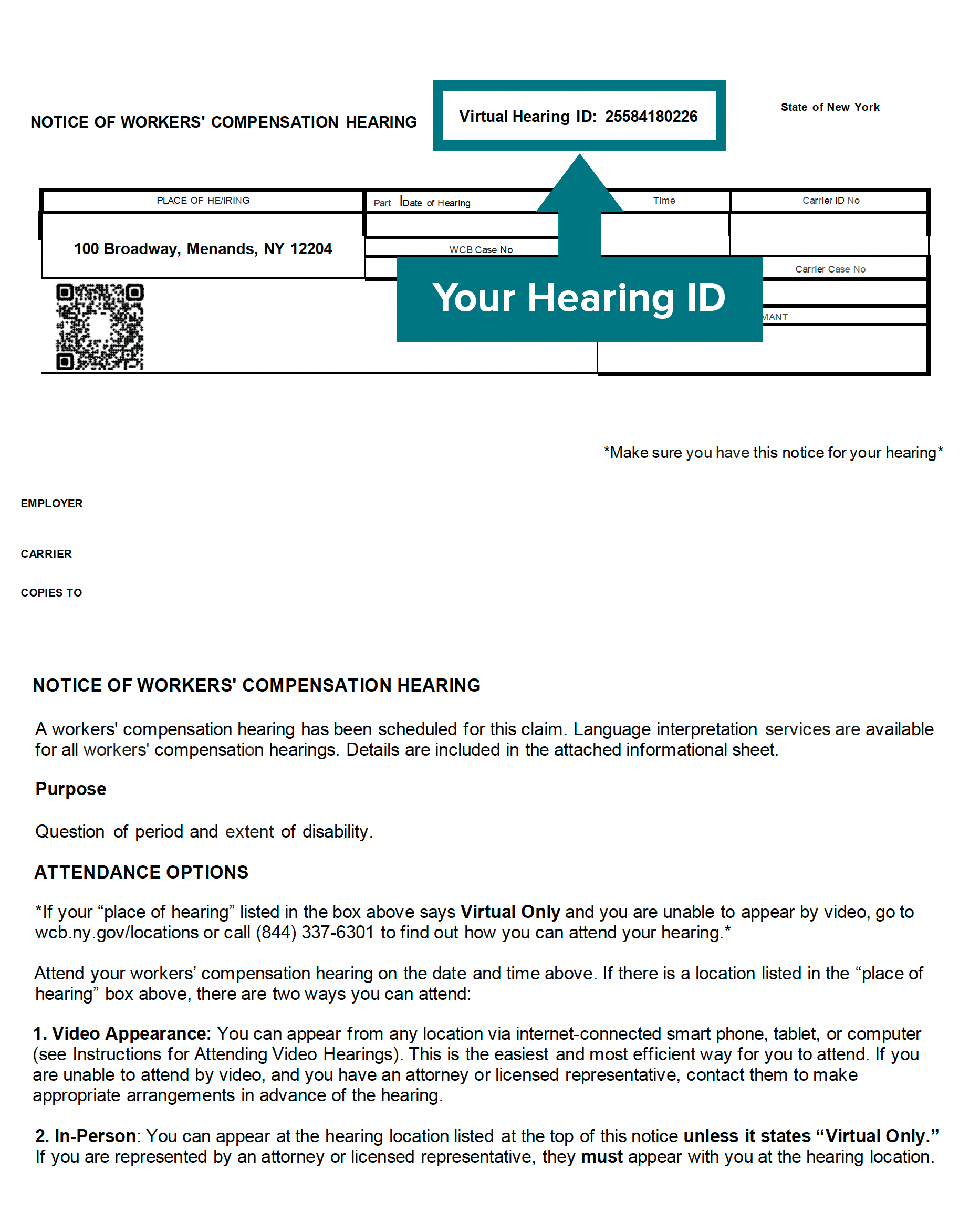
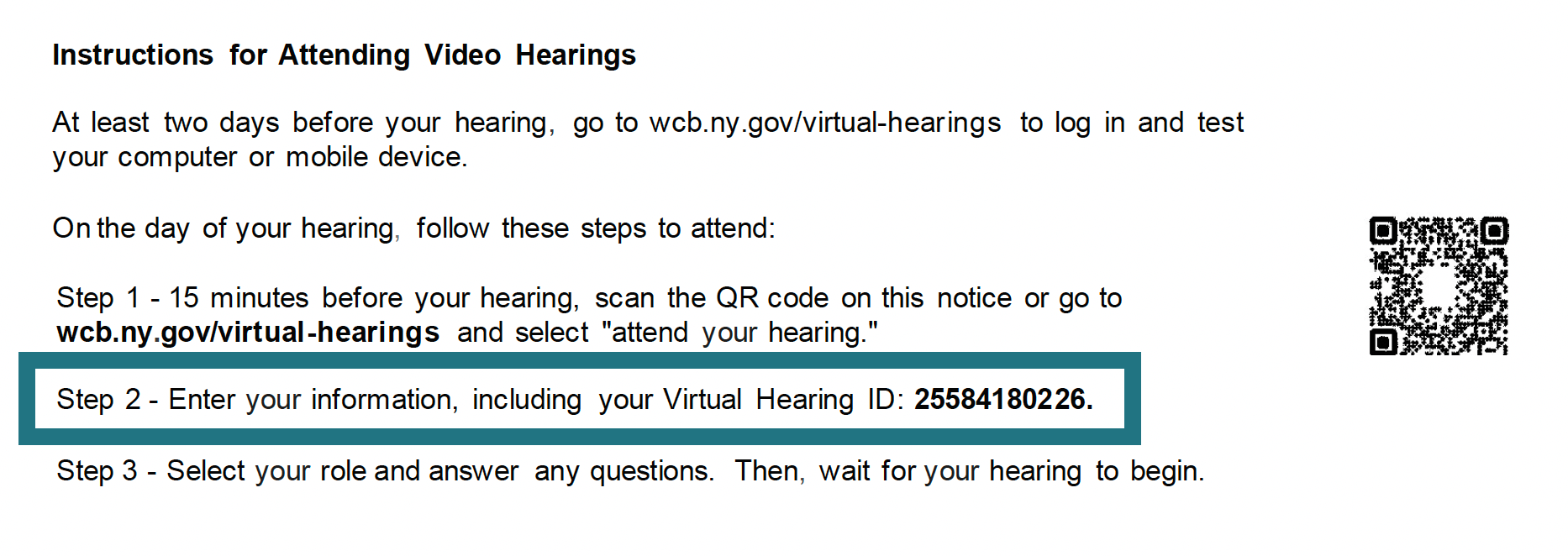
Locate the Virtual Hearing ID on your hearing notice. The Virtual Hearing ID assigned to your hearing is located at the top of the hearing notice and in the message under the section titled "Virtual Hearings." The Virtual Hearing ID number is not the WCB case number. You will check into your hearing using your Virtual Hearing ID, name, and contact information. If you are checking into multiple hearings, you need the Virtual Hearing ID from each hearing notice.
System requirements - first-time setup
Test your computer or mobile device at least two days before your hearing: Webex Test Meeting. In addition, visit the System Requirements webpage webpage for complete set up details and troubleshooting information.
- If you are using a mobile device, like a smartphone or tablet, you must download the "Webex Business" application. Do not download "Webex Meetings."
- If you are using a laptop or desktop computer, you do not need to download the Webex application and will instead join using your browser.
- Make sure you are using an updated internet browser.
- You must have a camera or webcam.
- Disable sleep/standby mode to ensure that your computer or mobile device stays active.
- Ensure your phone is not set to "Do Not Disturb."
- Close other programs or tabs that may use bandwidth or create notifications during your hearing.
- Please ensure you participate from a quiet location.
- Go to mobile device requirements for more details on attending with a tablet or cell phone.
Checking into your hearing
On the day of your hearing, follow the instructions below to join it. It is recommended that you begin this process at least 30 minutes before your hearing's start time.
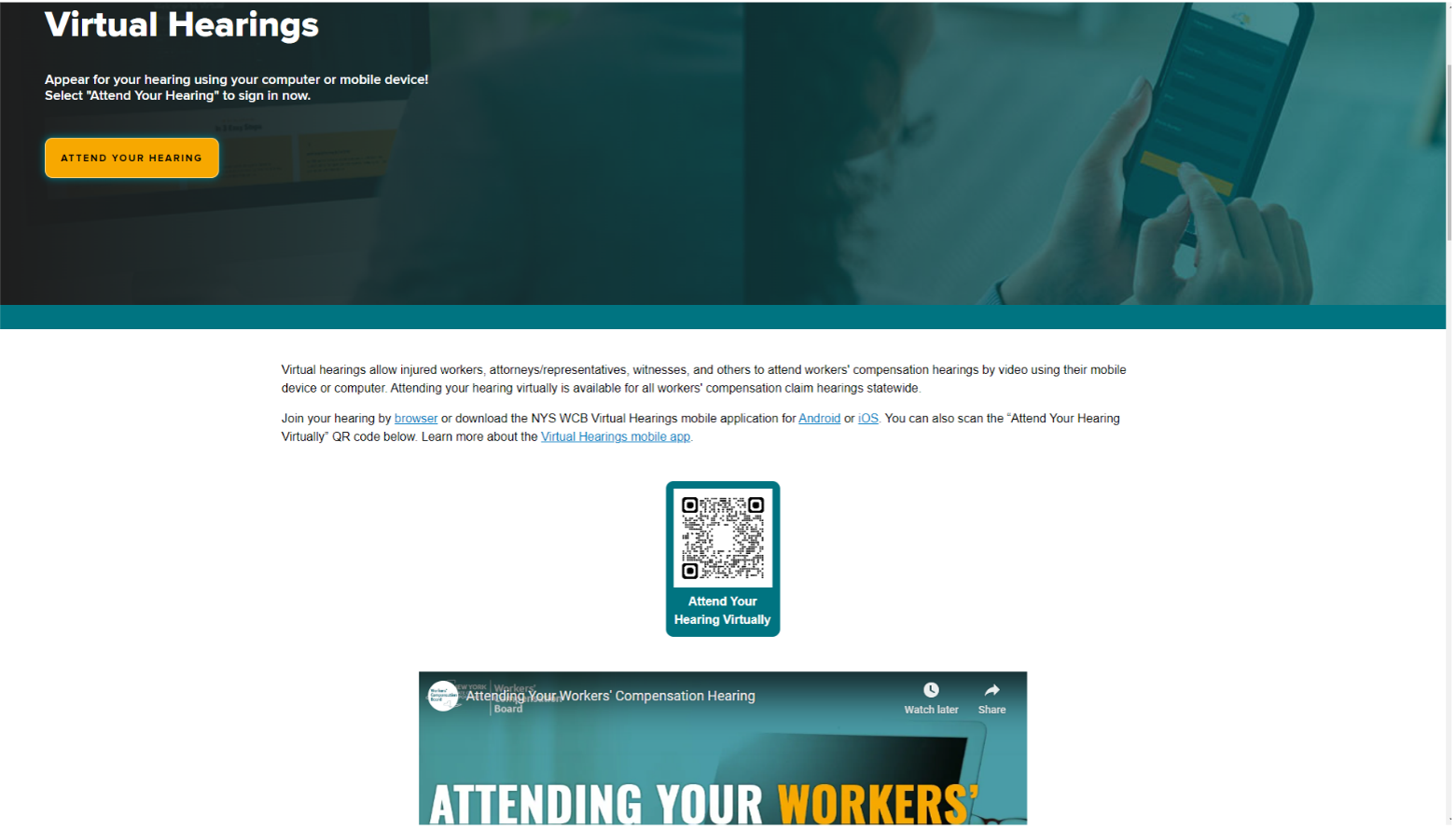
- Go to wcb.ny.gov/virtual-hearings.
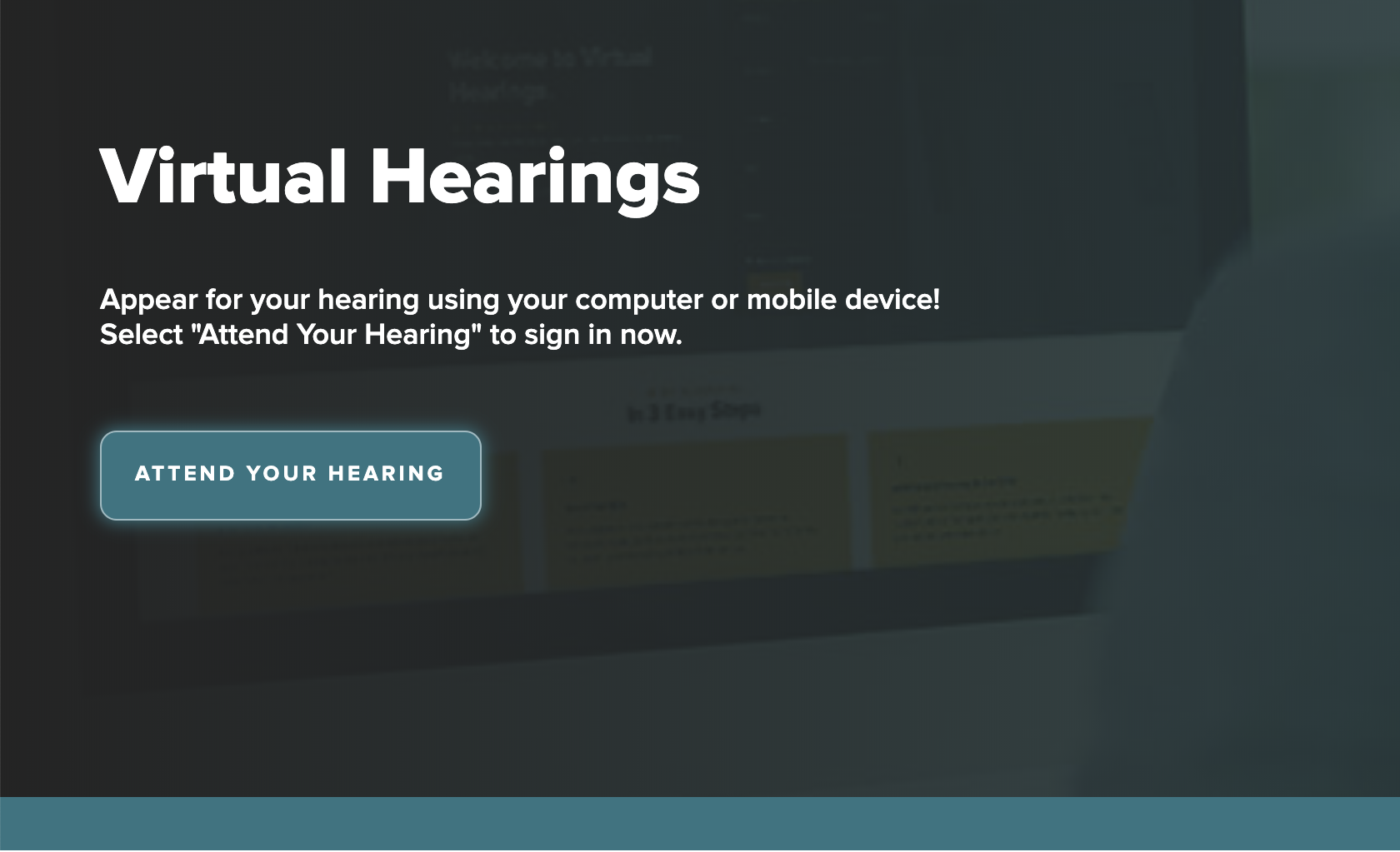
- Select the Attend Your Hearing button found at the top of the page.
- Enter your Hearing ID, first name, last name, email (optional), and phone number. Enter a mobile phone number to receive text message notifications when your hearing has started. Select the "International Number" button if you are entering an international telephone number. Select Continue.
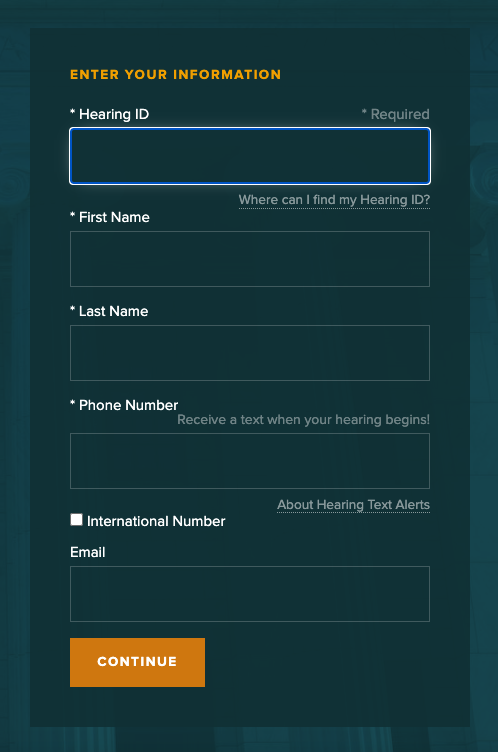
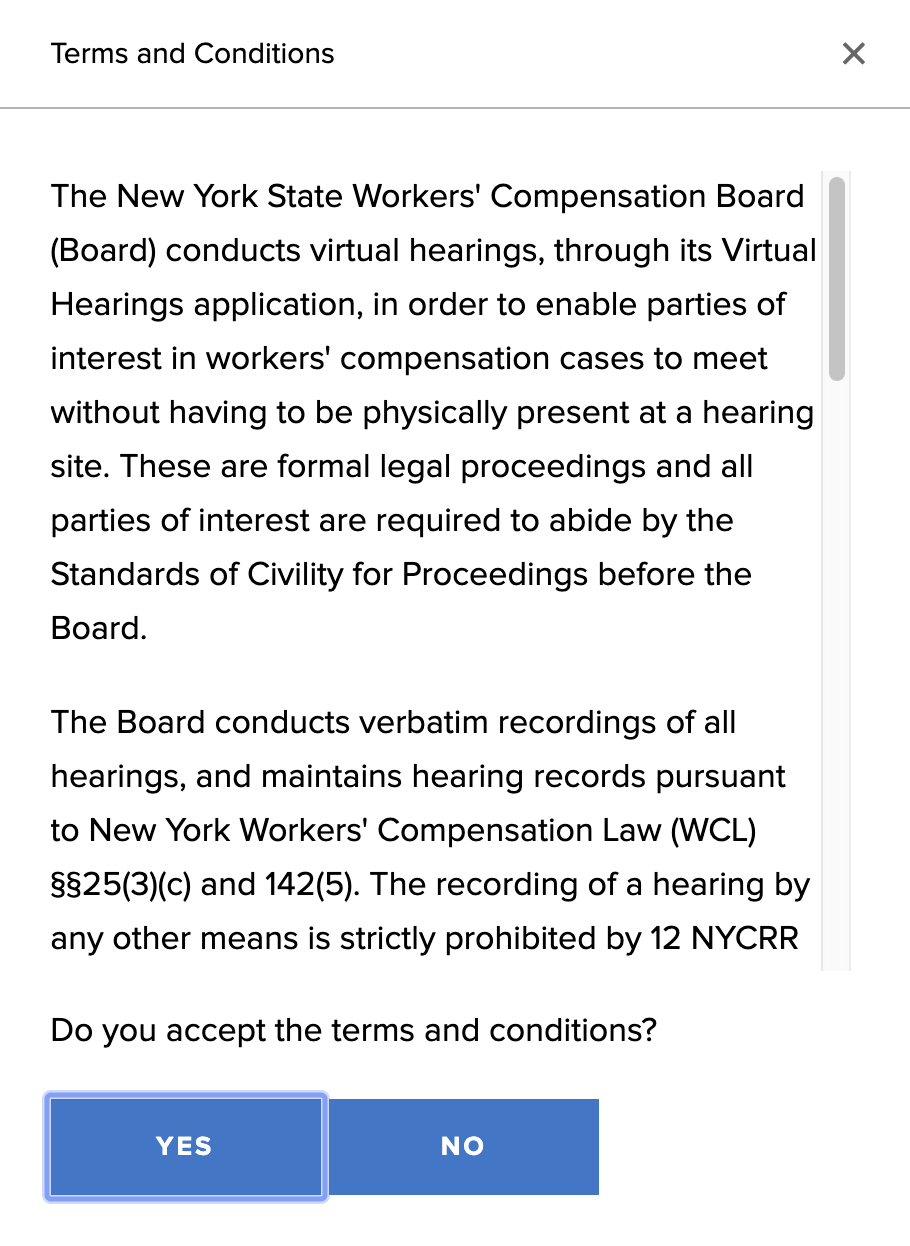
- Accept the Terms and Conditions.
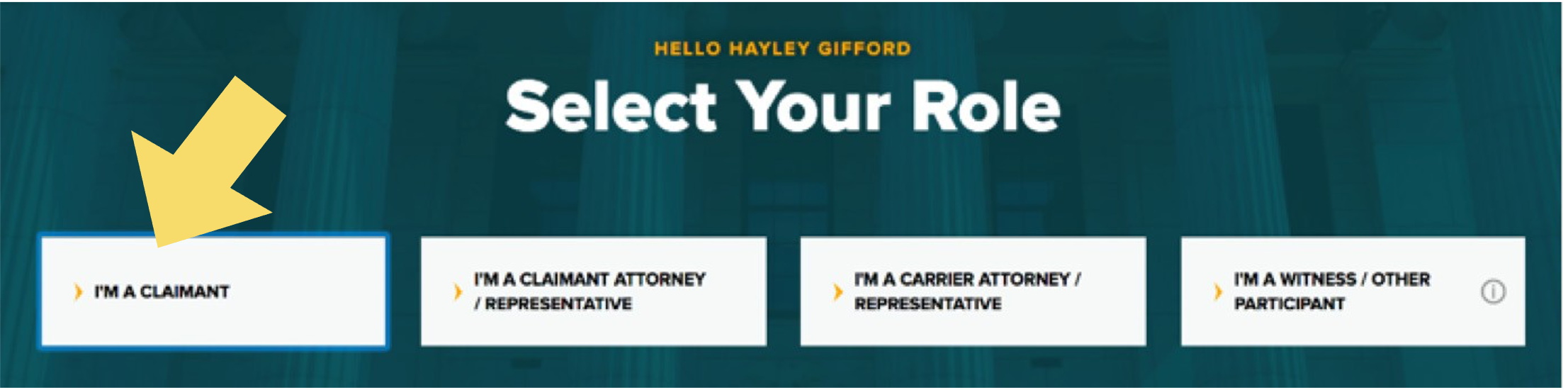
- Select I'm A Claimant.
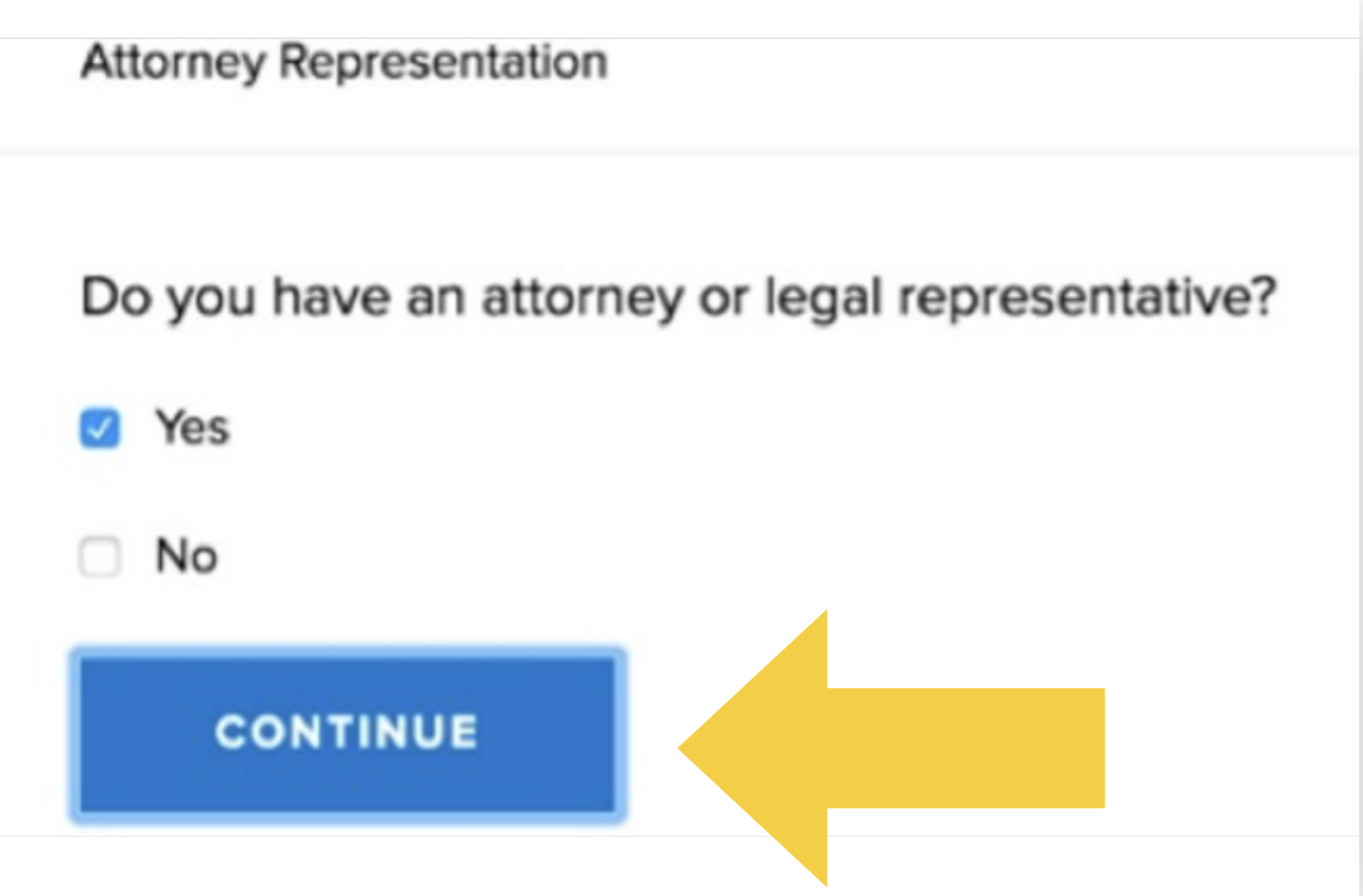
- Select whether you have an attorney or legal representative. Select Continue.
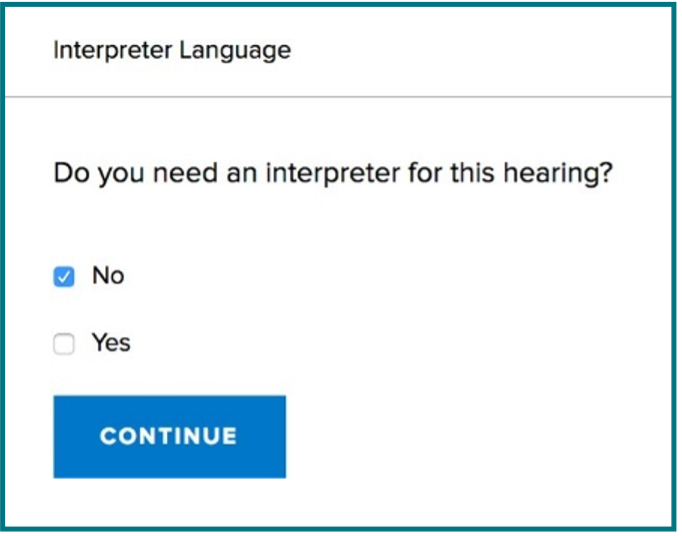
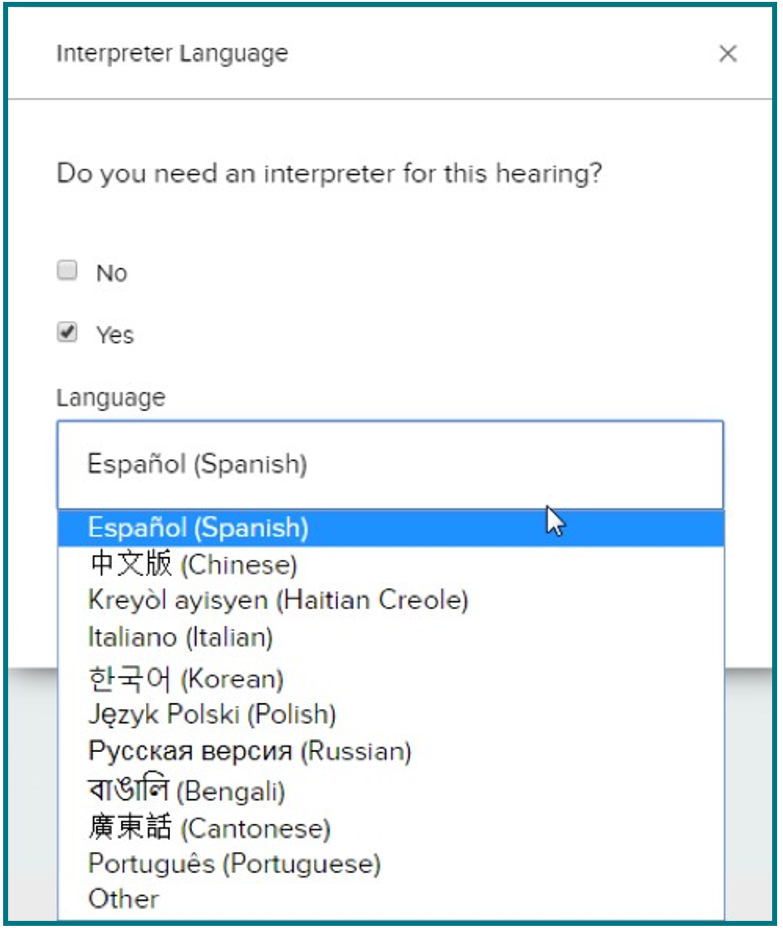
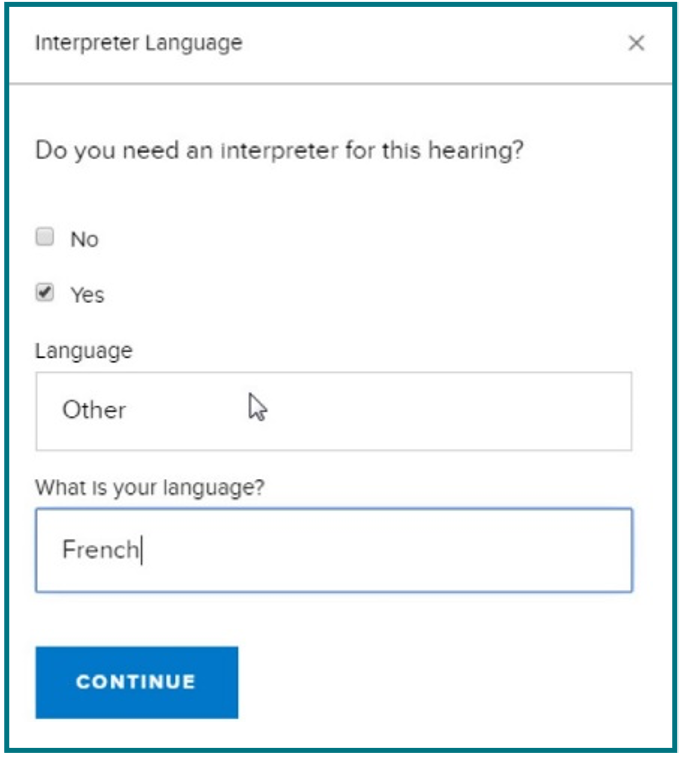
- Select whether you will need an interpreter for this hearing. If you do, choose the language needed. Select Continue.
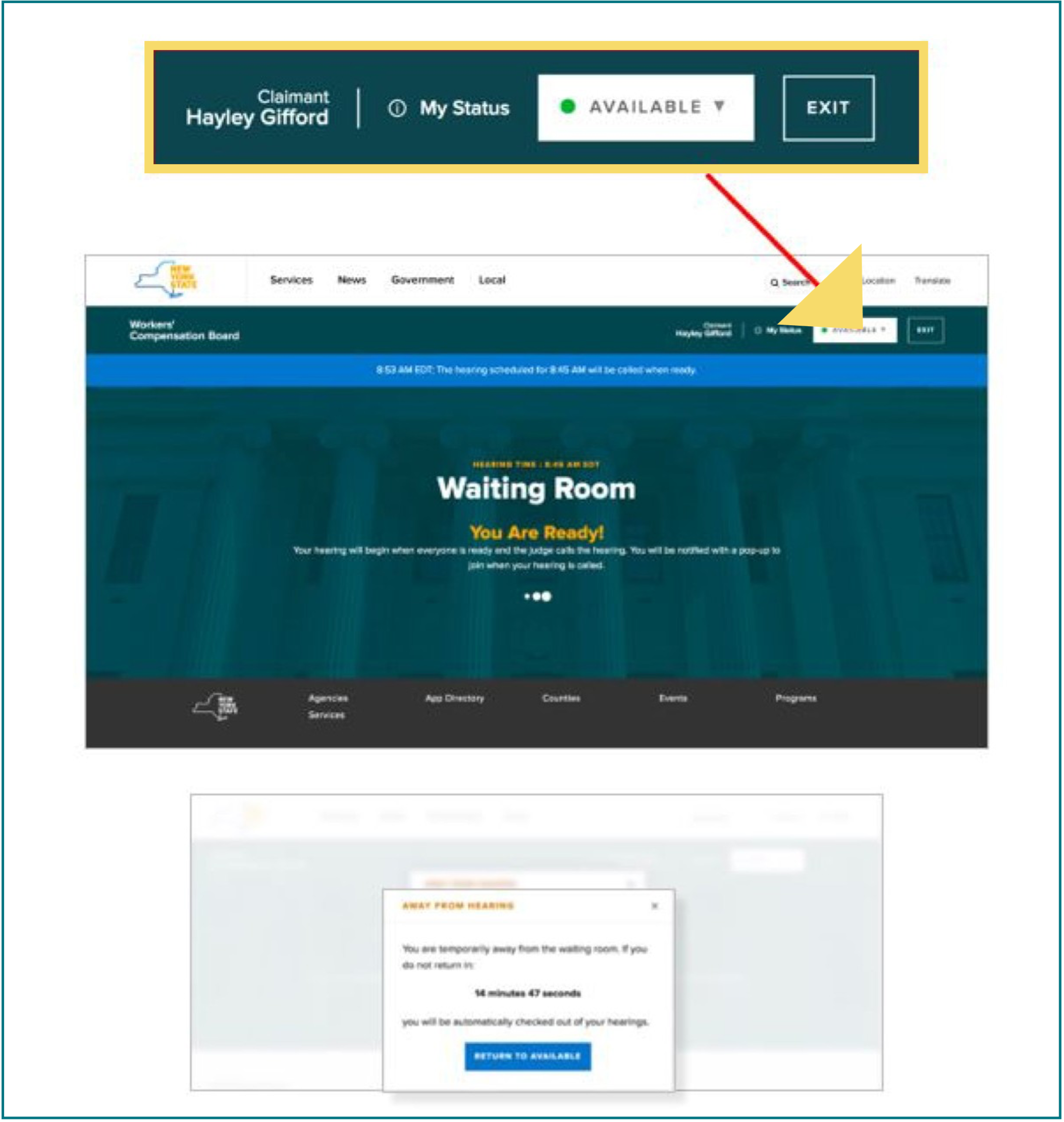
The Waiting Room displays on your device. By default, the system marks you as Available.
If you need to step away from your computer or mobile device before the hearing start time, mark yourself as Unavailable. This tells the judge you cannot attend your hearing at that time. To mark yourself as unavailable:
Select the My Status drop-down list at the top right corner of the webpage and select Away. The countdown timer will appear on the browser.
When you return to your computer or mobile device, select the Return to Available button to make yourself available.
IMPORTANT: If you're marked as unavailable for more than 15 minutes, you will be signed out of your hearing and will need to check back into your hearing once you sign back into the system.
Attending your hearing
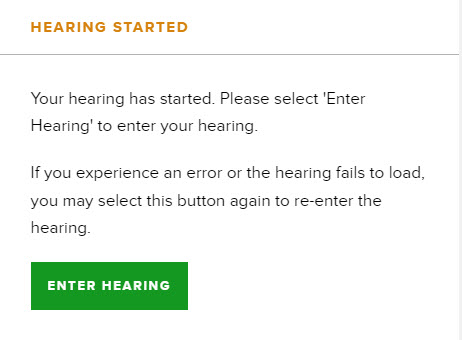
- When your hearing is called, you will see a message on your Waiting Room dashboard indicating that your hearing will begin. You will then hear a chime, and a pop-up message will appear to notify you that your hearing has started. When this pop-up message appears, select Enter Hearing to enter the hearing room.
-
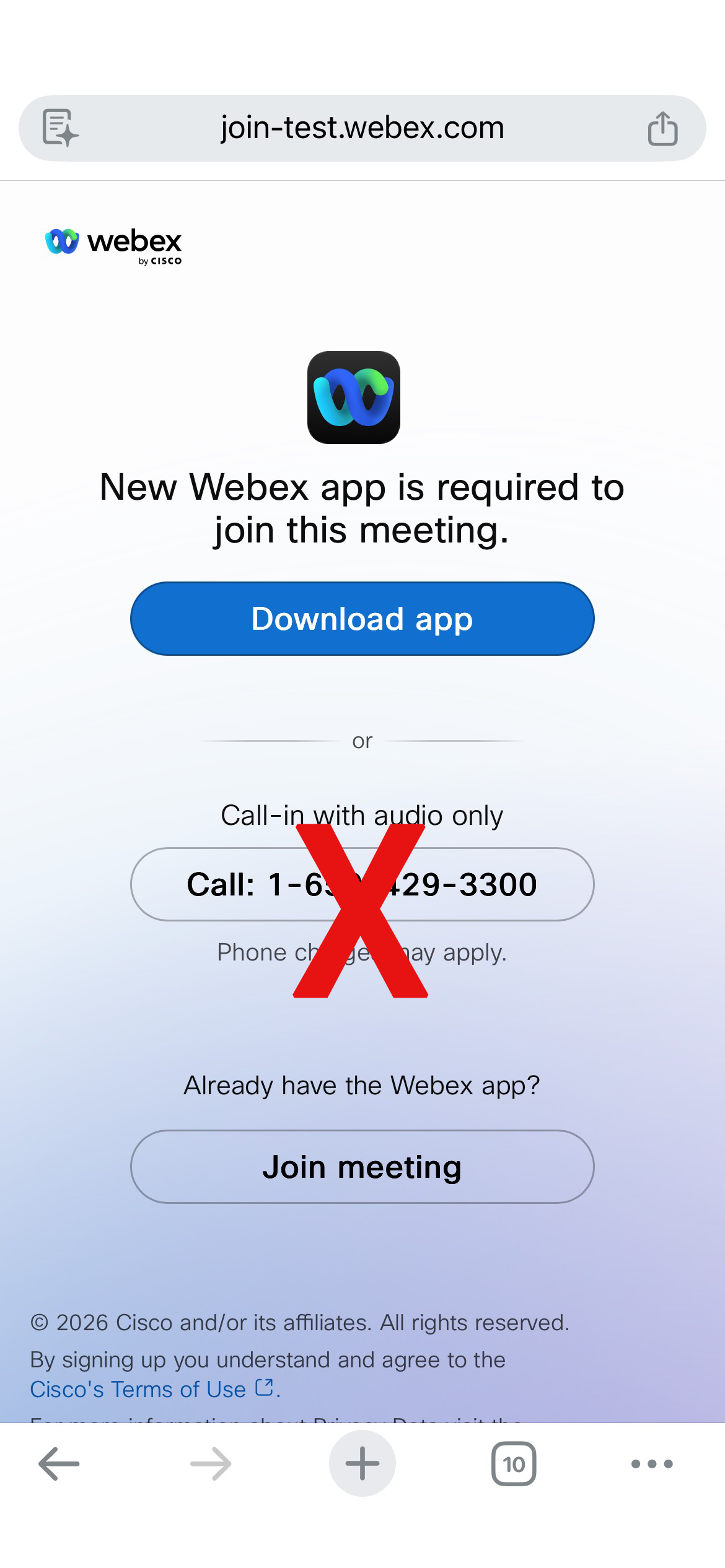
FOR MOBILE DEVICES ONLY:
Before your Webex hearing opens, this tab will open for mobile devices. Please download the Webex app if you haven't already, or select Join Meeting if you have the app installed.
DO NOT USE THE CALL-IN WITH AUDIO ONLY OPTION.
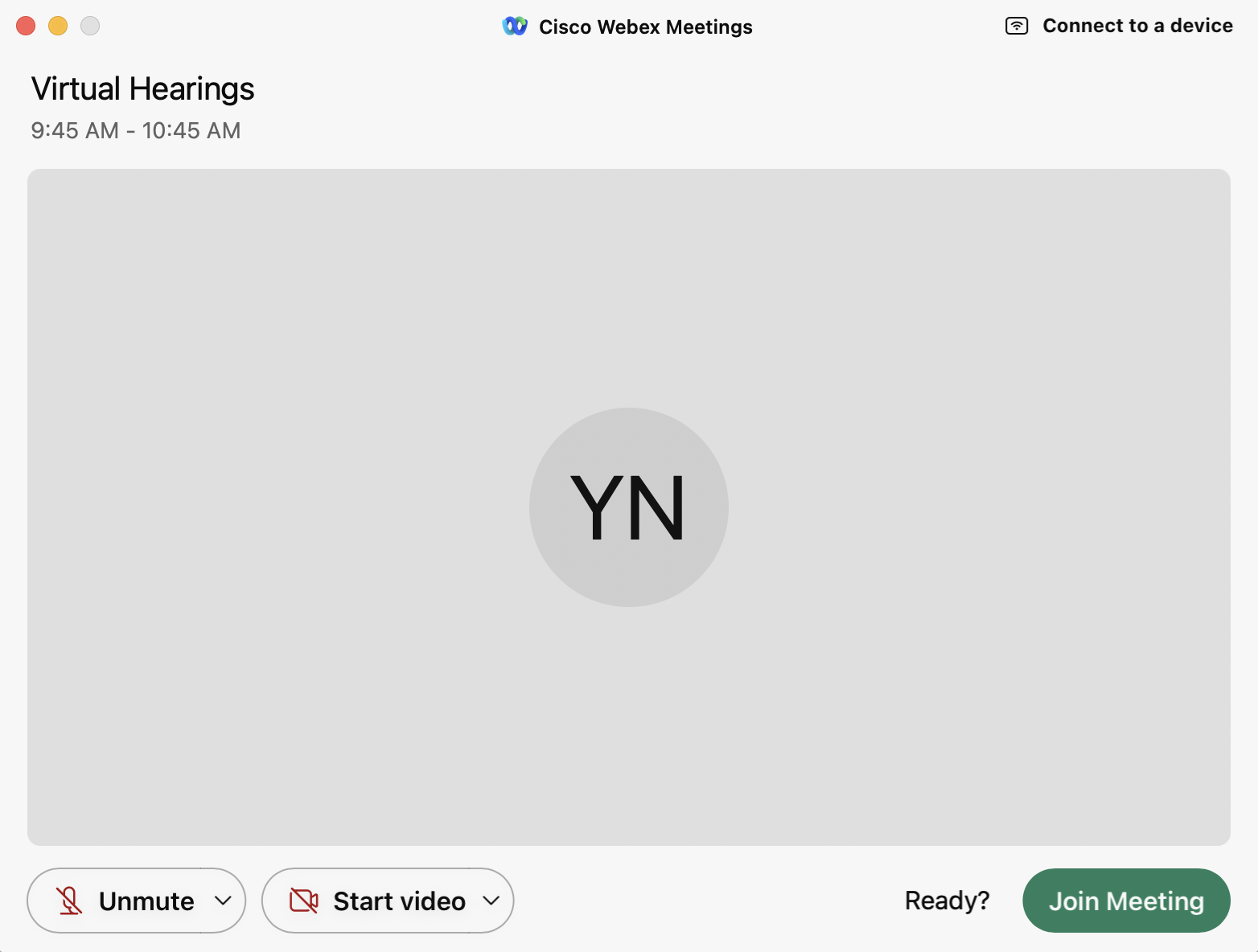
- After you select Enter Hearing, a new tab will open in your browser. Do not close this tab. The Webex window will open when your hearing begins. Before joining the hearing, a window will show, where you will connect your audio and video for the hearing.
-
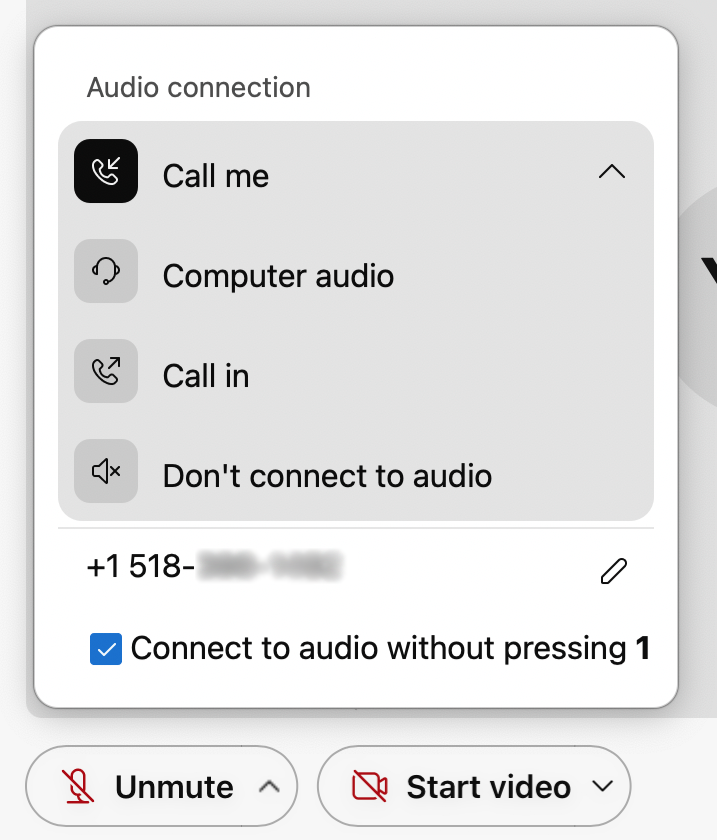
To connect your audio, select "Audio Options." If an audio option connects automatically, use the arrow next to "Unmute" to change your audio option. Your audio connection options will appear. Choose one of the following:
- Select "Use computer audio" to use your computer's microphone.
- Select the "Call me at" option to have the system call you. Enter a personal phone number for the system to call you. When you answer the phone, your audio will be connected to the hearing.
- Select "Call in" to have the system provide you with the toll-free hearing telephone number, access code, and attendee ID you must enter when calling from your phone.
After connecting your audio, select Unmute.
On a mobile device, connect your audio, mute or unmute using the microphone icon.
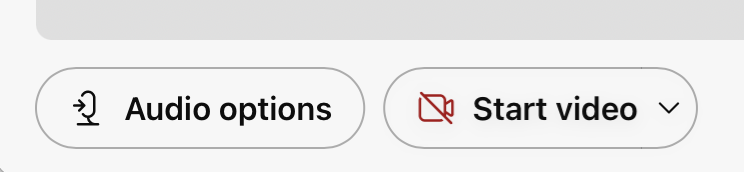
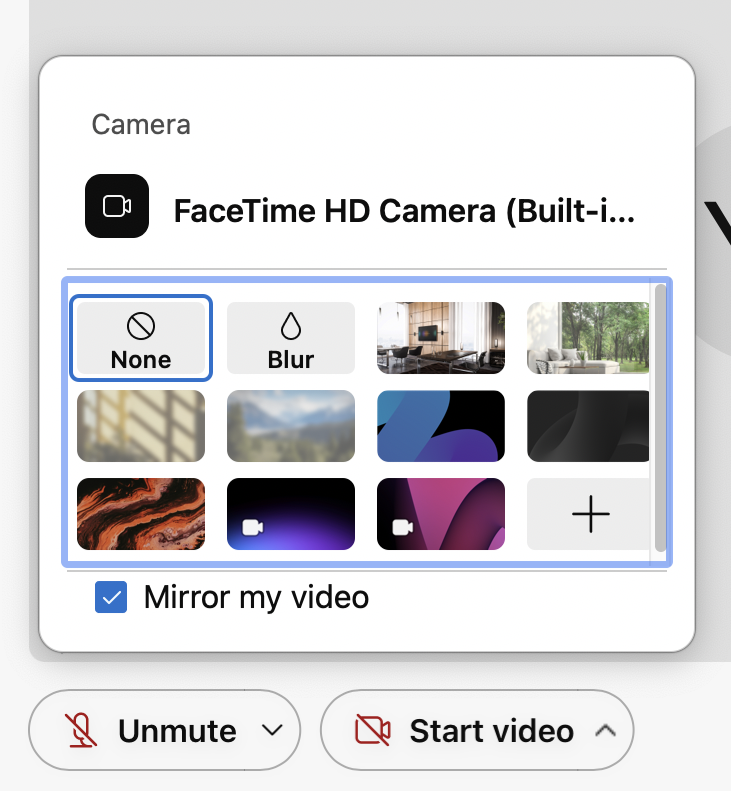
- Next, you will connect your video. To connect your video, select Start video. Your camera options will appear here. Select the camera to use and your video feed will connect. On a mobile device, connect your video with the video camera icon.
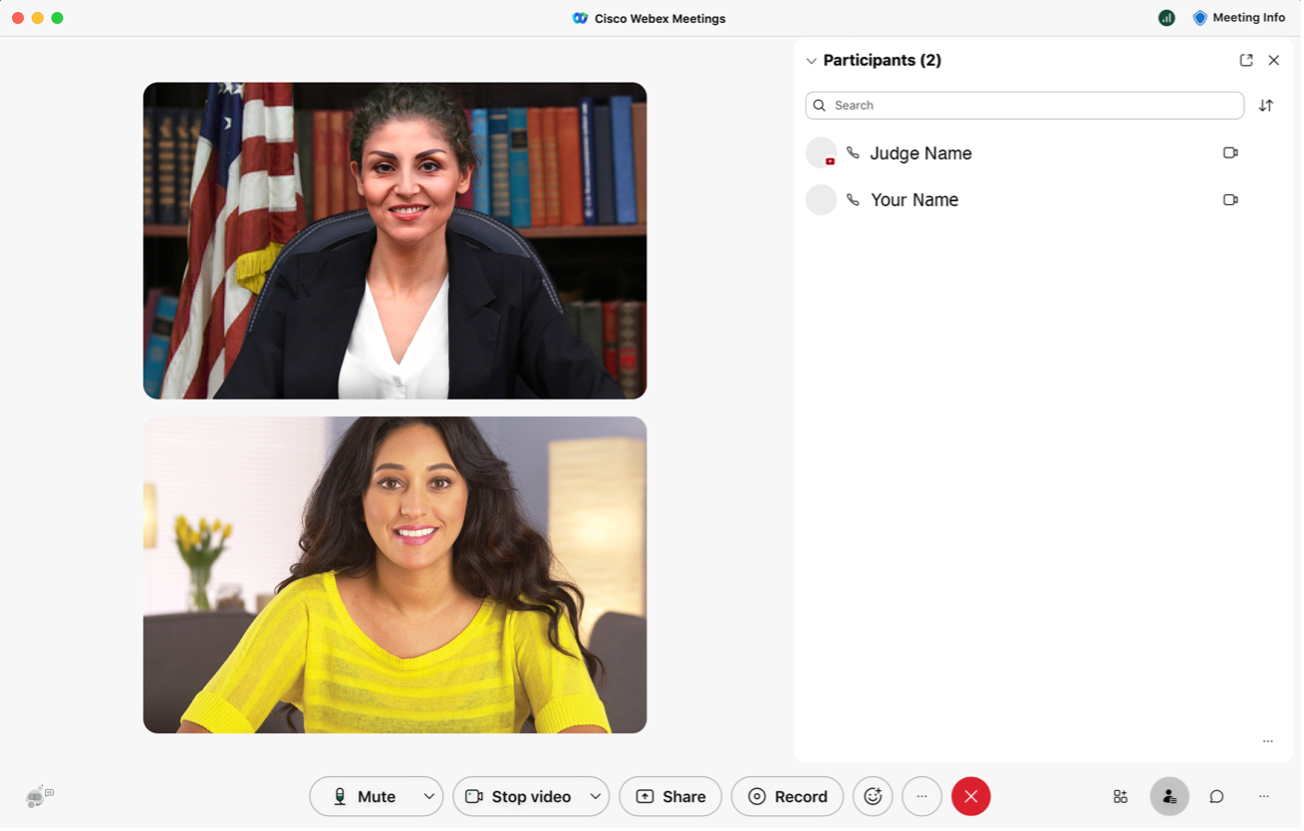
- After connecting your audio and video, select Join Meeting.

- Your hearing will now begin.
- For various reasons, the judge may take a temporary break in the proceedings and then recall your hearing. If that happens, go back to the tab titled NY WCB VHC Waiting Room and wait for the judge to call you in again.

-
When your hearing is over, the Webex window will close.
If you are all done, the waiting room message will change to read:

Mobile device requirements
To attend your hearing on a mobile device, you will join using your mobile browser. Follow these steps:
- On your mobile device, ensure your web browser application is up to date.
-
To ensure your web browser is updated, follow these instructions:
iOS: Go to the App Store, select your profile icon on the top right of your screen, scroll to view pending updates and update your web browser if needed.
Android: Select the Play Store app, select your profile icon on the top right, select Manage apps & device, Under "Updates available," find your web browser to update if needed.
-
- Required: Go to your phone's app store and download the "Webex" mobile application prior to your hearing. Do not download the "Webex Meetings" app. Tip: test Webex opens external website on your mobile device prior to your hearing.
- Sign in for your hearing at vhc.wcb.ny.gov opens external website.
- You are required to enter a phone number. Enter a mobile phone number to receive a text message notification when your hearing begins. Without entering a mobile number, you will need to keep your waiting room browser tab open and active on your mobile device until your hearing is called or you will not know your hearing has started.
- You will receive a text message when your hearing begins. If you have opted out of text messages, you must keep your browser open and active (do not let it go to sleep) to see that the hearing has been called. You will not receive an audio notification from your browser or from a text message alert if you have opted out of text messaging, so it is highly recommended that you agree to receive texts so you don't miss your hearing.
- When Webex opens, connect your audio and video within the Webex application.
- To connect your audio, tap the microphone icon.
- To connect your video, tap the video camera icon, and connect your front facing camera.
- If your meeting is recalled and you are not automatically brought back to your browser's waiting room, you need to go back to the "NYS VHC Waiting Room" tab in your mobile device's browser. This will show you as available for your hearing again.
- If your meeting is recalled, or you need to wait for your next hearing to be called and you are not automatically brought back to your waiting room, you need to go back to the waiting room tab that is within your mobile device's browser. This will show you as available for your recalled hearing or for your next hearing.
CONVENIENCE TIP: Add a virtual hearings shortcut to your mobile device
Looking for a better way to access virtual hearings? Add a virtual hearings webpage shortcut to your mobile device for easy access! Visit the shortcut instructions for more information.
Submitting documents
Use eCase Document Upload to submit documents up until and including the day of the hearing. To use eCase Document Upload, you must be registered to use eCase or be granted access by an organization that is a party of interest and has access to eCase. To learn more about eCase Document Upload, including instructions and available forms to upload, visit the eCase Document Upload webpage.
Note: Documents should only be uploaded so they can be reviewed as evidence at the hearing. No additional action will be taken on them and they will not be reviewed by a claims examiner. To learn more about how to submit documents that require action by the Board, or if you are not eligible to use eCase Document Upload, visit the Forms webpage.
Contact
If you need to attend your hearing by phone call, please call the Customer Service Center: (844) 337-6301. Reminder: All represented claimants testifying in virtual hearings are required to appear and testify by video with their faces fully visible on screen. For more information, visit: wcb.ny.gov/virtual-hearings.
Need help?
Call: (877) 632-4996
Hours: 8:30 a.m. - 4:30 p.m. Monday - Friday